-1.png?width=1920&height=970&name=Juno%20Tax%20Prep%20Advisory%20Review%20(1)-1.png)
The CCH Axcess <> Juno integration works by pushing the data that Juno has extracted, directly into CCH Axcess using the .dat file format.
If you have not yet connected your CCH Axcess instance to Juno please visit our How to Connect CCH Axcess to Juno article.
Step-by-Step Instructions
Ensure Documents are Validated
Before exporting your client’s preparation to CCH Axcess ensure that all documents are validated and then click “Proceed.”

If this is your first time exporting the selected return, you will see the below screen. Here, you will upload the .dat file for the client from CCH. Steps on how to get this file can be found in our How to Connect CCH Axcess to Juno article.

Map your Documents
Juno allows you to map data prepared in Juno to existing/rolled forward documents in CCH Axcess. If you have not yet completed the steps outlined in the How to Connect CCH Axcess to Juno article, please do so before proceeding. If you have already updated the client in CCH since last importing the .dat file, you can upload a newer version by clicking "Re-Snyc" in the top right of the screen.
Before exporting a client, ensure the documents you want to export are added. To map the data of each form, select the drop down in the "Action" Column on the right-hand side of the Juno app. Each document will have 3 actions listed:
- Add - This will create a new form in CCH and input the validated data into it.
- Skip - This will skip the document when you export.
- Update - This will direct Juno to navigate to the specified document and input the validated data there.
Important Notes: Mapping the data using the Action column is especially important for situations where continuity matters such as returning clients, pro-forma returns, and prior year carryovers. Depending on the client data in CCH, there may be multiple options to index a form to.
For documents like a 1099-MISC that can be added to the return in different ways, you can utilize the “Maps To” column to control where the data goes.
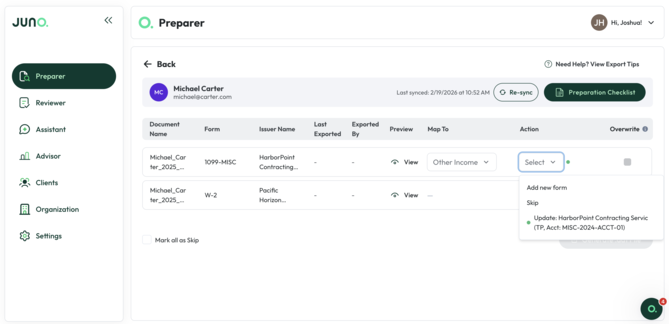
Once all documents are mapped accordingly, click the “Import Data” button.
Saving and Importing to CCH Axcess
After clicking the “Import Data” button you’ll see the below screen. Select the “Generate .dat file” button You’ll import to CCH Axcess in a few seconds.
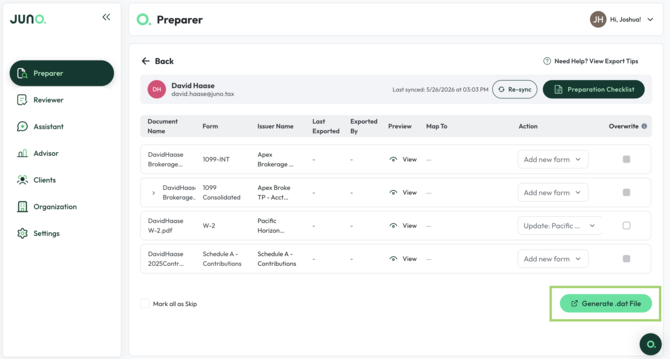
After saving the .dat file open up Return Manager in CCH Axcess and click the “Utilities” tab and then select “Import”

Next, ensure that the Checkbox is selected and click “Browse” and select the .dat file you generated a few seconds ago in Juno.

After selecting the corresponding file click “Validate” then “Import” then “Finish” once the import completes.

Great! You’ve now imported the validated data from Juno into CCH Axcess. This should only take a few seconds to be reflected in CCH Axcess, but if you would like to ensure completion navigate to the “Batch Manager” and click “Refresh.”

If a client sends you a new document, but you have already completed the export to CCH Axcess simply repeat the steps above. With Juno you can export data to a client’s return in CCH Axcess as many times as you’d like.
Preparation Checklist
Now that Juno has exported the majority of data to your CCH Axcess instance, you can use the Preparation Checklist to make sure all additional fields that Juno does not export to CCH Axcess get added. Click here to learn more about how to use the Preparation Checklist.
If any other questions on exporting an individual's preparation to CCH Axcess come up, please contact Customer Support via live chat inside of the Juno Web App or email us at support@juno.tax. We're happy to help!