-1.png?width=1920&height=970&name=Juno%20Tax%20Prep%20Advisory%20Review%20(1)-1.png)
Important Note: The below functionality is not retroactive. The Preparation Checklist will display values for forms uploaded starting 2/20/26.
What is the Preparation Checklist
While Juno exports the vast majority of data included in your preparations, there is a subset of data that we don’t input to your tax software as part of our tax software integrations.
This is where the Preparation Checklist comes in. The Preparation Checklist surfaces all the data that Juno extracts but does not support inputting into your tax software as part of our tax software integrations in an easy to use checklist interface.
Where and When to Use the Preparation Checklist
You’ll notice the Preparation Checklist displays right after successfully exporting data from Juno to your tax software. This provides the option for the Preparer/Exporter to stay in the flow and finish inputting the client’s data into your tax software.
You can always open the Preparation Checklist by clicking the “Preparation Checklist” button within the Juno Integration app, or on the source document mapping screen for CCH Axcess users.

It’s important to note that the items listed in the Preparation Checklist are also displayed on the source document they originate from within the Juno Binder.

This allows Reviewers to be in sync with what Preparers have already confirmed they input into the tax software.
How to Use the Preparation Checklist
The Preparation Checklist is available in the Juno Integration App, or on the Source document mapping screen for CCH Axcess users.
Once you click on the Preparation Checklist button you’re presented with a list of all forms that contain values that Juno does not input into your tax software.

Once you select a form your screen will update to look like below:

In this view you’ll see the corresponding document on the left and the fields that Juno does not input into your tax software on the right. The fields are arranged in order of severity/importance and include a helpful action item.
While inputting these fields is fully optional we recommend you treat the list as a checklist. Once you have copied a value to your clipboard and pasted it into the tax return, you can mark the field done by checking the box.
If your firm uses the Binder you’ll notice that the items stored in the Preparation Checklist are displayed throughout the Binder.
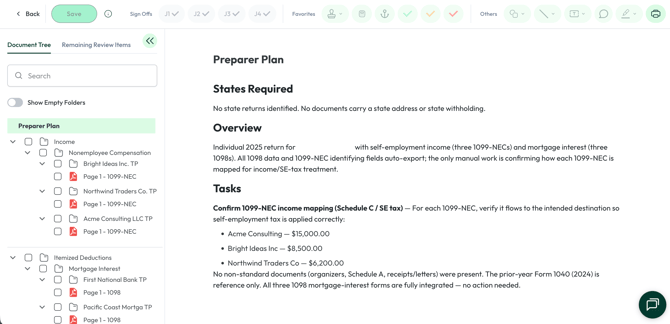
After export Juno will generate a "Preparer Plan" that will appear on the first page of the binder.
Once you reach a page in your Binder that contains a field that Juno does not export to your tax software you’ll see the yellow bar at the top of the page.
Once you expand the bar you’ll see all values that you have either marked done or not marked done. This allows your team to be in sync on what values have been manually entered into your tax software.

Finding the yellow bar to be in your way? Click the “Hide” button and it’ll shrink to the far left side of the page.
