
What is Reviewer?
Reviewer offers a wide range of functionality for firms to streamline their Review process. Rather than reviewing source documents on one monitor and a tax return on the other (going field by field), Reviewer streamlines the process by highlighting specific data points that Reviewers should review.
How and When To Use Reviewer?
New to Reviewer? Start with Getting Started with Reviewer for setup and a walkthrough of each tab.
Select “Reviewer” and add the following documents, two of which are optional.:
- Current Year Draft 1040 (required) - After completing Preparer, generate a draft return of your client’s 1040 and upload it on the page below.
- Prior Year 1040 (optional but recommended) - Juno will conduct a YoY analysis using the prior year 1040 if you choose to upload it.
- Organizer (optional but recommended) - Upload your client organizer/questionnaire in PDF or CSV format. This will allow Juno to analyze your client's responses and compare them to what is present on the draft 1040.
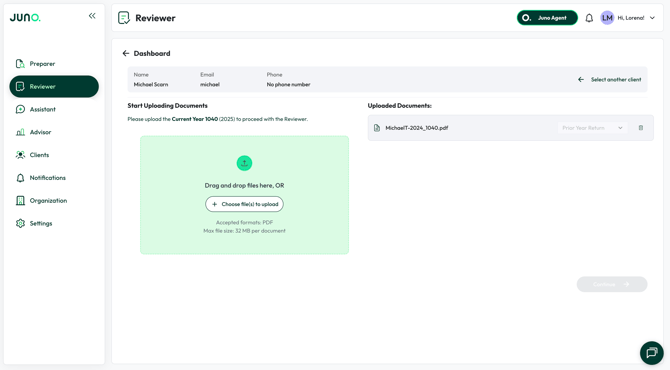
After uploading your documents, ensure that each document is classified correctly via the dropdown menu. Once they are, click “Continue.”
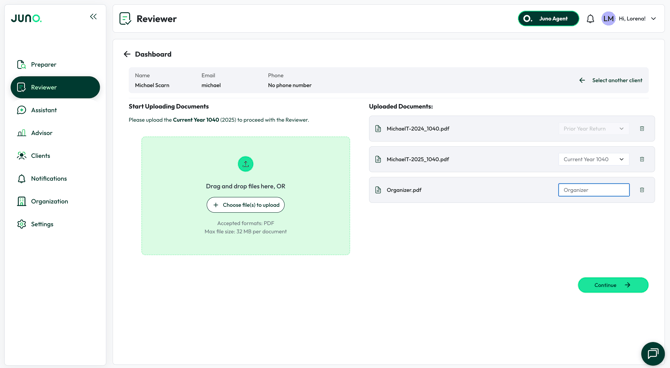
After uploading, the documents will take a few minutes to process. Juno extracts the data from the draft return and uses that context to compare the tax return to the extracted data you validated from your source documents during Preparer.
Once the return is finished processing, you can proceed to view the results. Now let's break down all the tabs of Reviewer.
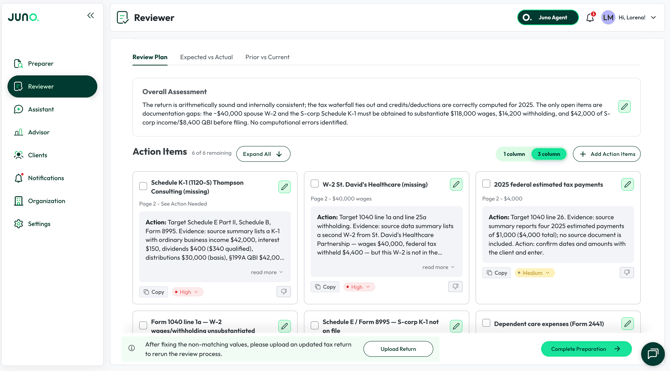
- Review Plan - The Review Plan tab gives you a summary of what Reviewer found across all tabs, what it already checked, and what still needs your judgment, so you know where to focus before you open the file.
- Key findings up front. What Reviewer caught, what it verified, and what still needs you.
- Action items, not just flags. Each item tells you what to look at and why. Marking Action Items done on the "Review Plan" tab also updates your Preparation Checklist.
- Downloadable PDF. One click, and you have a review plan you can hand to your reviewer or keep in your files.
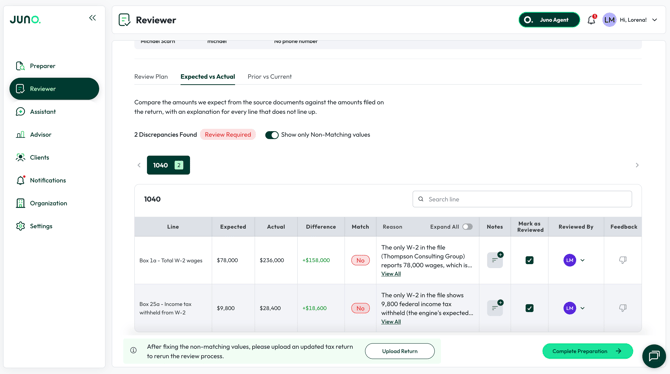
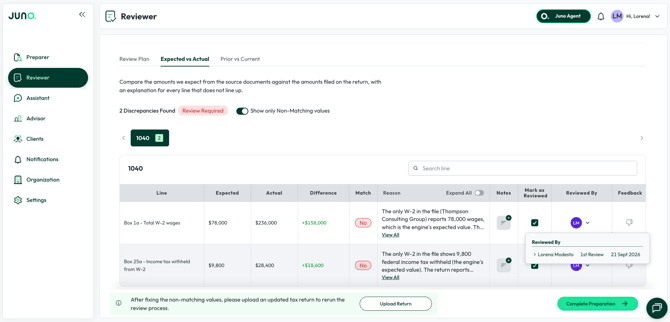
- Expected vs Actual - The Expected vs Actual compares amounts from your source documents against what was filed on the return and explains any discrepancies. You can use Show only Non-Matching values to focus on differences, review the explanation for each item, add notes, and Mark as reviewed to track your progress.
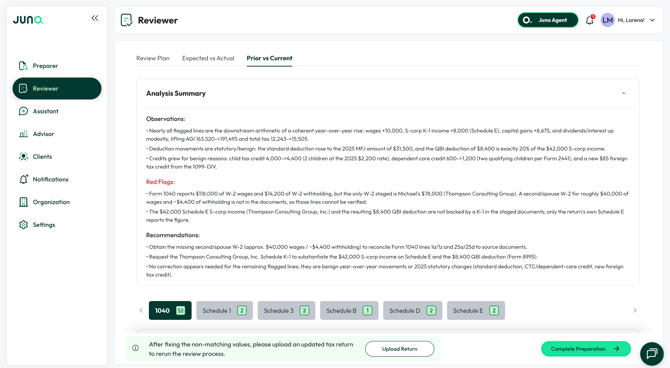
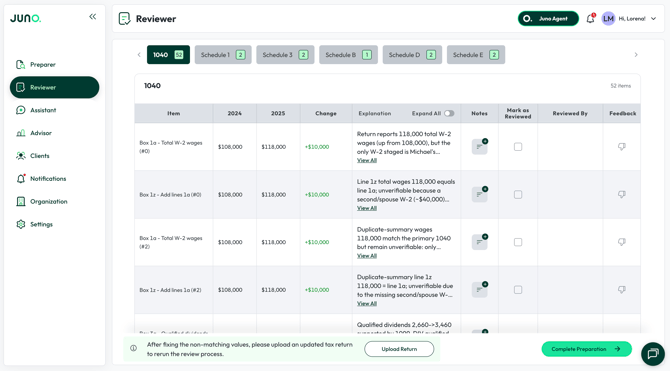
- Prior vs Current - Prior Year Comparison matches the current-year return to the prior year, form by form. The Analysis Summary highlights key changes, explanations, and items to confirm, while the line-by-line table shows exactly what changed across each form and schedule.
How to Use Reviewer With Your Team
Whether you are upskilling Preparers to do the first pass of review or have a multi-step review process, Reviewer allows you to collaborate with your team.
The following columns in Reviewer allow you and your team to work together:
- Notes - The Notes field allows you and your team to communicate and share updates on a field. A common use case here is communicating to the rest of the team or as a note to yourself that the field has been updated in the tax software.
- Mark as Reviewed - Use the Mark as Reviewed field as either your own personal checklist or a way to communicate with your team which fields pass Review.
- Reviewed By - After you click “Mark as Reviewed,” you’ll notice your profile icon will display in the “Reviewed By” channel. This communicates to your team who has completed Review and when they did so.
Questions
If any other questions about Reviewer come up, please contact Customer Support via Live chat inside the Juno Web App or email at support@juno.tax. We're happy to help!