-1.png?width=1920&height=970&name=Juno%20Tax%20Prep%20Advisory%20Review%20(1)-1.png)
There are two important configuration steps required to get Lacerte working with Juno. Complete these when you're first getting set up, or any time you need to make updates to your configuration.
- Update your Lacerte data locations in the Integration App. This is an organization-level setting and only needs to be completed once by a single user.
- Ensure the 64-bit SDK is up to date on each computer or virtual machine that hosts a Lacerte instance. The most recent version is available on Intuit's developer page here. This is required by Intuit.
Step 1: Update your Lacerte data location
To push data from Juno to the correct returns in Lacerte, you'll need to make sure you have a data path saved for each tax year and entity. Once configured, Juno will automatically detect the return type and tax year of each preparation you export, and route it to the correct path automatically.
Watch the video below to see how to update your Lacerte location in the Juno Integration App.
If your firm uses a non-standard folder structure, reach out to us at support@juno.tax and we'll make sure you're properly set up.
Step 2: Update your Lacerte 64-bit SDK
Lacerte releases several 64-bit SDK updates throughout the year - especially between December and February. If Juno is having trouble connecting to your Lacerte instance, an outdated SDK is usually the reason. Download the latest version from Intuit here.
You can ensure you have the latest Lacerte SDK by going to your Apps and searching for Lacerte. You will want to ensure your version matches the version shown in the image below.
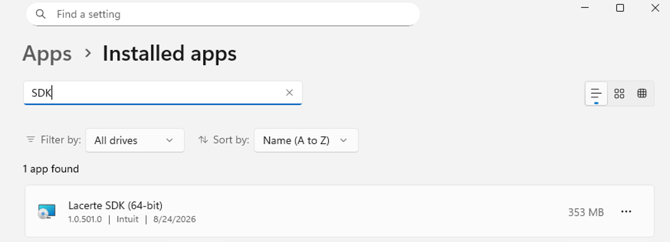
If your version does not match what is shown above, in the below video the Juno team walks you through how to confirm you have the correct 64b SDK.
Important Note: After downloading and installing the latest 64b SDK you'll need to restart your machine for it to work properly.
If you're on a third-party hosting service like Rightworks, Verito, or Apps4rent, the latest SDK should already be installed. If it's not, please contact your Account Manager at your hosting provider and and prompt them to install the latest 64b SDK and restart.
The Juno Support team is staffed with tax professionals that are ready to help and answer questions. Feel free to reach out to them via live chat in the Juno Web App or by emailing support@juno.tax
Need a refresher on the Lacerte <> Juno integration? View our entire collection of Lacerte articles