-1.png?width=1920&height=970&name=Juno%20Tax%20Prep%20Advisory%20Review%20(1)-1.png)
Connect to Microsoft 365
To connect to your Microsoft 365 account, navigate to "Organization" on the left-side panel. Open the "Integrations" tab. From the Integrations tab, click Connect under Sharepoint / OneDrive.

Once you hit connect, the Microsoft sign-in screen will open in your browser. Sign in with the Microsoft account tied to your firm's SharePoint or OneDrive. After you sign in, a Microsoft permissions window will open. To utilize the Juno <> Microsoft 365 integration, review the requested permissions and select Accept.
If the authorization window does not appear, check your browser's pop-up blocker and allow pop-ups.
Some Microsoft 365 tenants require an administrator to approve third-party applications. If you see a message that your organization must approve this app, ask your Microsoft 365 administrator to grant consent for Juno, then try connecting again.
Once the integration is complete, you will be redirected to the Juno Web App. You can now browse your SharePoint and OneDrive folders and select files to upload into Juno during the Source Document Upload step in Preparer or Advisor.
Microsoft 365 within Preparer
From the Preparer dashboard, select an existing client or start a new tax preparation. In the preparation workflow, proceed to the Upload Documents step. Select Sharepoint / OneDrive from the list of supported storage providers.
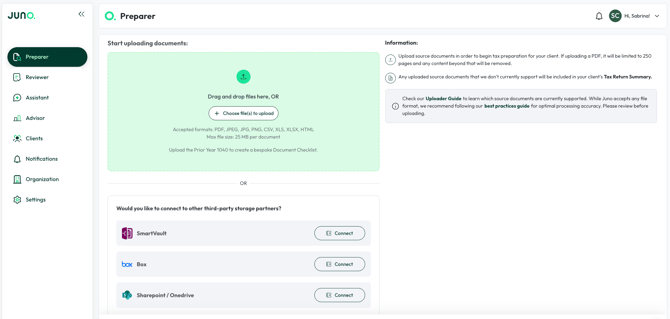
Choose the SharePoint site or OneDrive location you want to pull from, then navigate to the appropriate client folder. Select the specific documents you want to upload into Juno. Review your selection and upload.
The chosen files will appear in the Source Documents list. Click "Continue" in the bottom right to upload them to the client's tax preparation documents. Juno will then begin processing your documents. Once documents are finished processing, you will receive a banner notification "Upload Complete!". Continue through the Preparer workflow to validate your documents.
Microsoft 365 within Advisor
The steps to use Microsoft 365 within Advisor are very similar to using it within Preparer. From the Advisor dashboard, choose the client you wish to reference. Click "Attach Files" and select Microsoft 365. Within your SharePoint or OneDrive folders, find the specific client documents you wish to upload. Extra Step: In the Upload Documents screen, assign a form type corresponding to the document you are uploading.
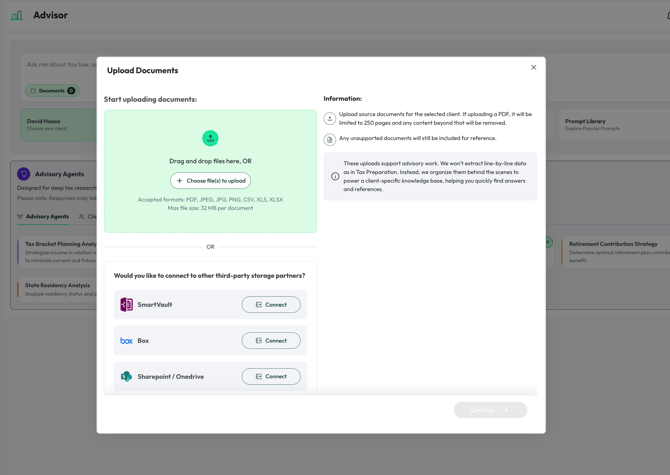
Click "Continue" and Juno will begin processing the document. An Upload in Progress banner will appear at the top of your screen to track the status of the upload. You will not be able to use Advisor until the document is finished processing.
Once the upload is complete, the Upload in Progress banner will update to "Upload Complete!". Your document will not appear within Advisor but it will have been added to the client's documents for reference. You are now ready to use Advisor.
Where else you can use Microsoft 365
You can also pull documents from Microsoft 365 in these areas of Juno:
- Prior-year 1040 upload
- Business return document upload