-1.png?width=1920&height=970&name=Juno%20Tax%20Prep%20Advisory%20Review%20(1)-1.png)
Want to watch video demos of Advisor?
How to add client data to Advisor for analysis:
Watch Video
How to utilize advisor for custom prompts using Juno’s Pre-built Advisory Agents:
Watch Video
Advisor and Assistant: What is the Difference?
You may be wondering what is the difference between Juno’s Advisor and Assistant products? Great question!
In short, Assistant is designed to give you quick answers to tax law questions and draft emails and memos.
Advisor utilizes cutting edge technology to deliver the best advisory by utilizing Advanced tax calculations, client analysis, tax planning scenario analysis and tax advisory agents.
Advisor requires more time to accurately answer your questions which is why Assistant is ideal for quick answers to tax law/research questions.
Making the Most of Advisor:
Want to quickly see what Advisor can do before doing a deep dive? Follow this step-by-step guide!
-
Upload at least one client tax return
-
After the return(s) finish processing, go to Advisor and within the “Advisory Agents” section select “Tax Strategy Deep Analysis”
-
Now select the client who’s return you just uploaded. After a few minutes you’ll have a detailed report that would have taken you weeks without Juno.
-
While your Advisory Agent is running (you’ll be notified when it finishes) let's try a custom prompt. First, click "Select Client" and choose the client who's return you recently uploaded. Now within the Prompt entry area try entering a prompt or advisory question that pertains to the client you have selected.
-
Once the Advisory Agents is done be sure to review it.
Read the rest of this document to learn everything you can do with Advisor.
Navigating Advisory:
Custom Prompts:
 Using this section of Advisor allows you to enter custom prompts/scenarios. A few important things to know regarding this section:
-
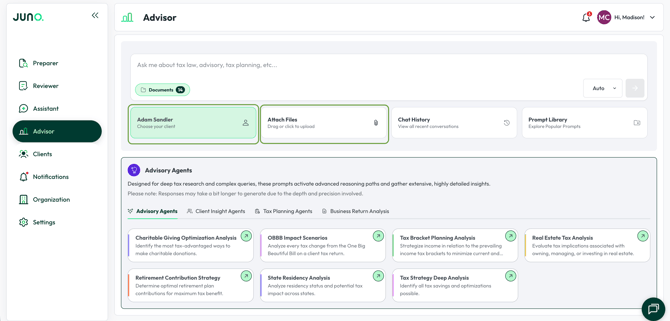
When wanting to analyze a client for whom you have uploaded a return already, all you need to do is click “Select Client” and select the client you want your prompt to pertain to. This will leverage both tax and non-tax documents attributed to this client in Advisor's analysis.
-
Want to upload documents related to the selected client? Click "Attach Files" and upload the documents you'd like Advisor to analyze. This will ensure that the documents are attributed to the correct client and saved for future advisory work.
-
Select a prompt or be inspired by our Prompt Library. The Prompt Library is a collection of the most popular and highest ROI prompts that Juno users utilize.
-
View Chat History. This is where you can look back at your previous Advisor conversations and your Advisory Agent outputs.
Advisory Agents
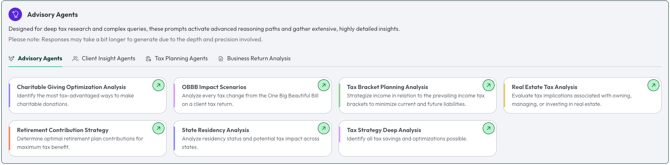
Advisory Agents are custom built agents for tax advisory workflows. Each agent will do a thorough analysis of your client’s return and generate a detailed report with advisory insights. These reports can be used to shape your advisory work with the client or shared with the client.
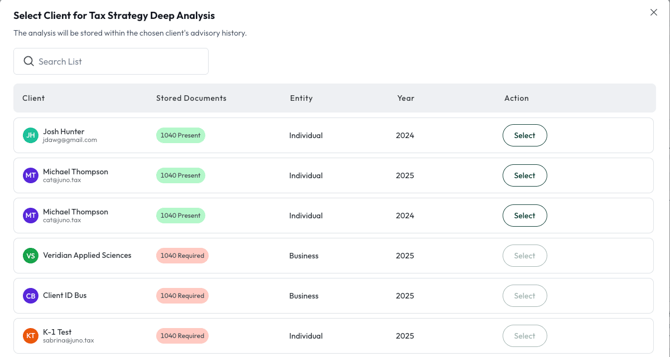
After selecting an Advisory Agent you’ll be asked to select which client you want to run the agent on.
Note: clients with the documents/return needed for the agent run will be clear. Clients who do not have the required documents can not be selected until the required documents are uploaded.
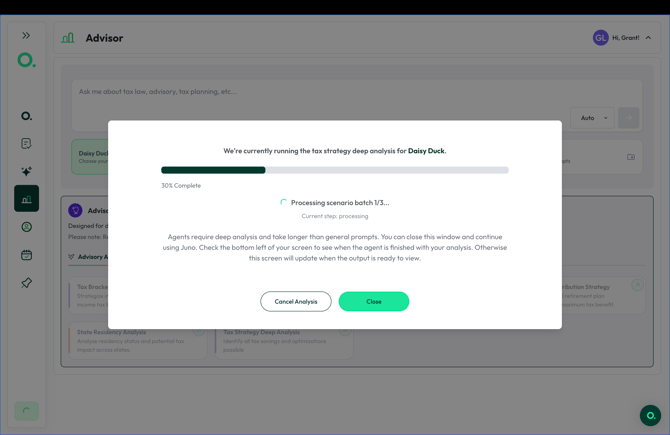
After selecting a client, you’ll notice that you’ll need to wait a few minutes for the Advisory Agent to finish. Advisory Agents take longer than standard Advisor prompts due to the complexity of the analysis. You can always close the loading screen and continue with other work. Keep an eye on the bottom left of your screen - when the agent is finished you can open it by clicking there. You can also go to “Chat History” to view all of your past conversations and advisory agents.
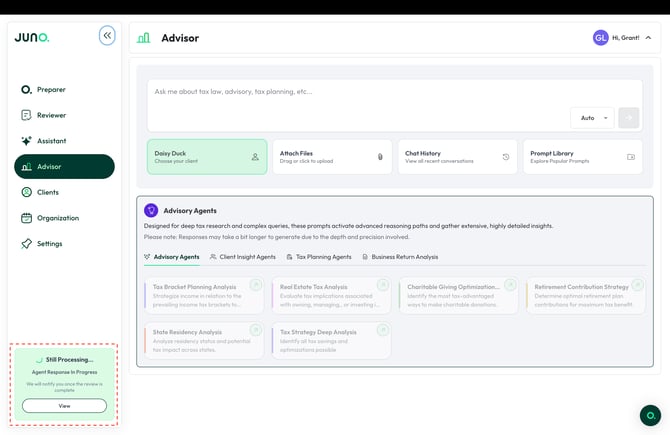
Please Note: You can only run one Advisory Agent at a time.
Generating Client Facing Presentations with Advisor:
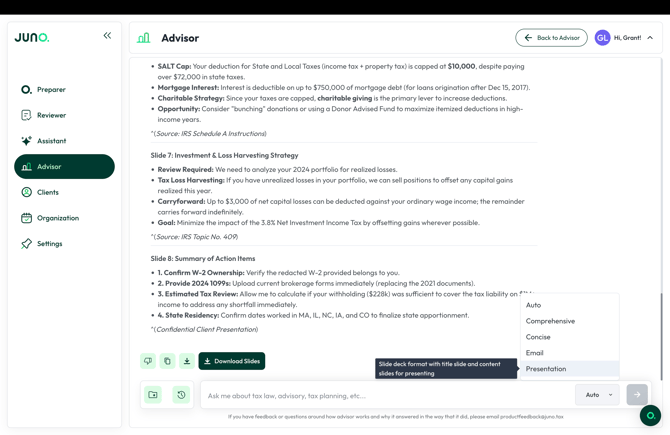
Advisor can create downloadable slideshow presentations. It is a fast way to package planning scenarios and recommendations for client meetings.

When prompting Advisor you can toggle your prompt type to "Presentation" or simply say "Please summarize the above advisory work in the form of a presentation that I can share with my client."
Once Advisor finishes creating the presentation click "Download Slides" and Advisor will create a powerpoint presentation in seconds that you can edit before sharing with your client.
Adding Returns and Additional Documents to Advisor:
Advisor delivers the most value when it has the context of your client’s returns. You can upload both individual and business returns as well as other tax documents. To do so, first click "Select Client" below the prompt entry area. After doing, so click ""Attach Files." This will ensure that the documents are attributed to the correct client and saved for future advisory work.
Questions
If any other questions on Advisor come up, please contact Customer Support via live chat inside of the Juno Web App or email us at support@juno.tax. We're happy to help!