
Before You Begin
You'll need:
- Your Juno and Karbon connection already set up (see How to Connect Juno to Karbon)
- Admin access to your Karbon workspace to edit Work Item Templates
Adding the Integration Tasks to a Work Item Template
- Open the Karbon Work Item Template you want to add the integration tasks to.
- Scroll to the bottom of the template and click Add Step.
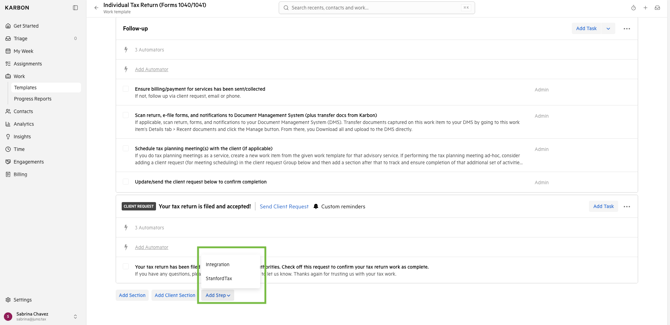
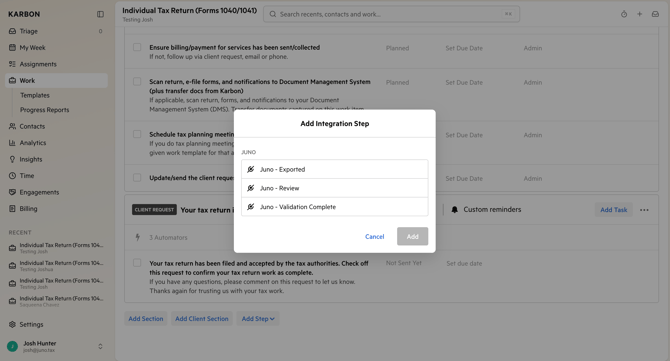
- Select Integration, then choose a Juno task. Then select Add. You'll need to repeat this for each of the tasks you'd like to utilize.
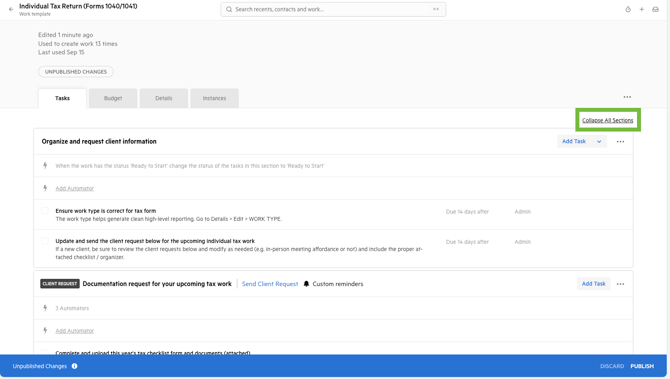
Pro tip: Adding the integrations step drops it to the very bottom of the template, and Karbon doesn't auto-scroll to it. Collapse all sections in the template first — it's much easier to find and drag the new step to where you actually want it once everything is collapsed.
Managing the Integration Tasks
What the tasks do
Once the integration tasks are on a work item, they give your team a direct link into the Juno preparation. They also report when documents are validated, exported and ready for review back to Karbon.
-
Juno - Validation Complete: Completed when all documents are validated and the prep status is "Validation Complete."
-
Juno - Exported: Completed when documents are exported to the tax software and the prep status is "Export Complete".
-
Juno - Review: Remains Planned until a review starts, moves to In Progress when a Reviewer run starts, and completes when the user marks the prep "Complete" in Reviewer.
The deep link
The integration tasks pass back a deep link that opens the preparation directly in Juno — skipping the step of opening Juno and hunting for the right prep.
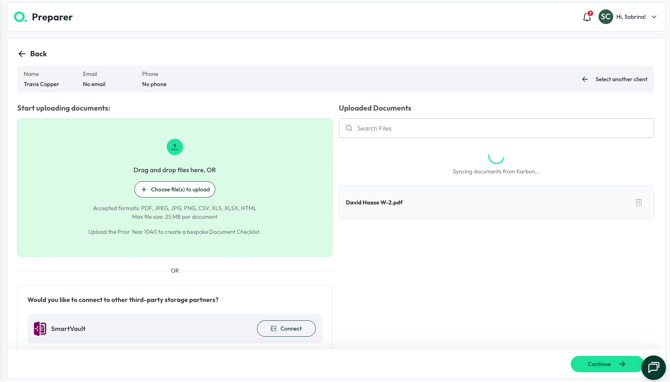
Juno may ask for some required information about the preparation before syncing the documents from Karbon.
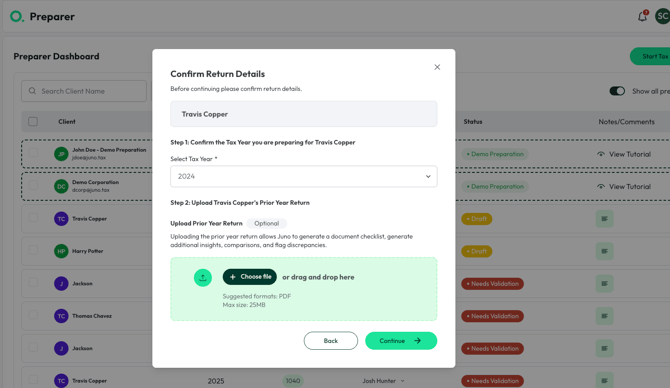
Once that information is provided, document import starts right away.
Status updates back to Karbon
Once a task is complete it stays complete, even if new documents are added later. Every task shows the current Juno prep status and the status of each document.
Using the status with Automators
Because the tasks move to Completed once all documents are validated or archived, you can use those status changes as a trigger condition in Karbon Automators. For example: when all tasks in the last section of your Work Item Template are marked Completed, you could trigger [next action].
If you have any questions, reach out to Juno support via live chat in the web app or at support@juno.tax