
What does Re-sync do?
The Re-sync button in the CCH Axcess integration lets you upload a new .dat file to an existing preparation. It refreshes the data imported from CCH Axcess without affecting any files you've uploaded or work you've already done in the Juno Web App.
When should I use it?
Use Re-sync in any of these situations:
- The wrong .dat file was uploaded - for example, the wrong client or tax year
- The original .dat file had bad data - such as proforma'd data that didn't import correctly or missing fields
- You're exporting a preparation from Juno to CCH Axcess a second time - for example, a client sends a brokerage statement after your first export and it needs to be added to the return. Re-syncing makes sure any changes made in CCH Axcess after the first export are reflected in Juno.
How to re-sync a .dat file
- Open your preparation and go to the form matching screen
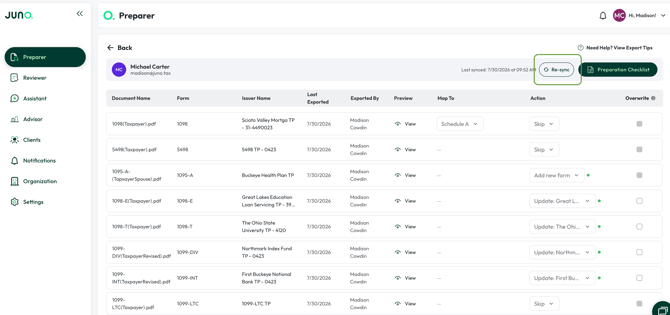
- Click the Re-sync button in the top-right corner
- On the screen that appears, upload the new .dat file from CCH Axcess. (Need help creating this file? See How to Connect CCH Axcess to Juno)
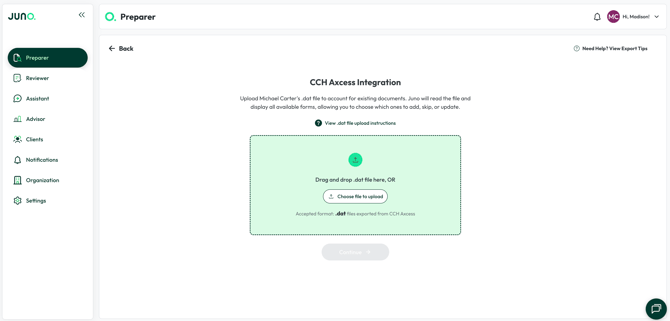
- Click Continue. You'll be taken back to the form matching screen with your refreshed data.
Questions
If any other questions on re-syncing a .dat file from CCH Axcess come up, please contact Customer Support via live chat inside of the Juno Web App or email us at support@juno.tax. We're happy to help!