
How it Works
Connecting a client is a quick three-step process: export the client's .dat file from CCH Axcess, download it from Batch Manager, and upload it to Juno. You can do this one client at a time, or import multiple clients at once with Bulk Import (see below).
Connecting a Client
Step 1: Export the Client from CCH Axcess
-
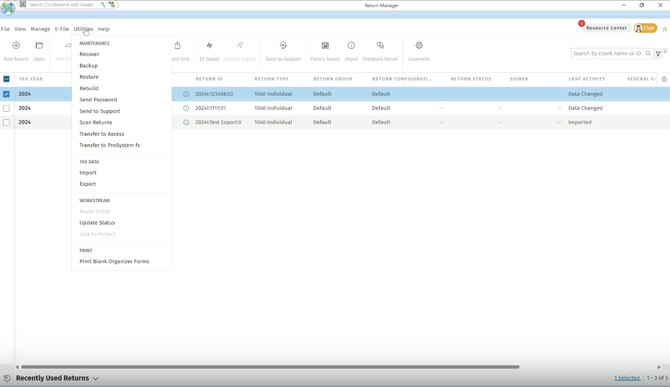
Open Return Manager in CCH Axcess and select the client you're working on in Juno
- Click Utilities, then Export
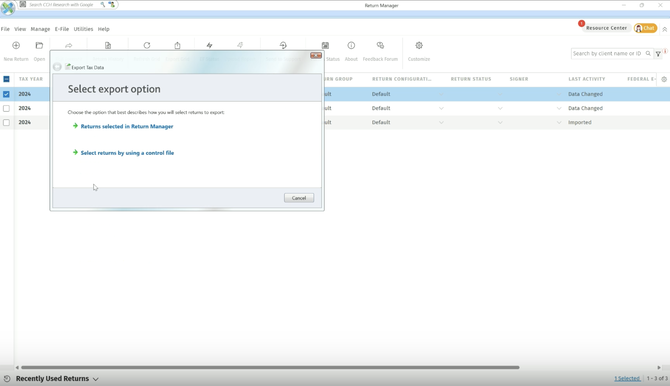
- Select Returns selected in Return Manager
- Make sure Included Input Data is checked, then click Export


Step 2: Download the .dat File
- From the CCH Axcess main Dashboard, open Batch Manager (under Application Links)

- Click Refresh - you'll see the export you just started
- Select Ready for Download and save the .dat file somewhere easy to find. You'll need it in the next step

Step 3: Upload the .dat File to Juno
Back in Juno, click Choose file to upload and select the .dat file you just downloaded. Once it uploads, the Continue button becomes available.

When your screen updates to the view below, you're connected!

Next up: Follow our Exporting Tax Preparations to CCH Axcess - Step By Step Guide to export the data you've prepared in Juno.
Importing Multiple Clients at Once (Bulk Import)
Note: Bulk Import isn't applicable for TaxDome, Canopy, Karbon, or Firm360 users. If you use one of these practice management integrations, create your clients through the integration and upload .dat files individually instead.
To bring several CCH clients into Juno at once:
- In the Juno Web App, go to the Clients tab and click Add New Client
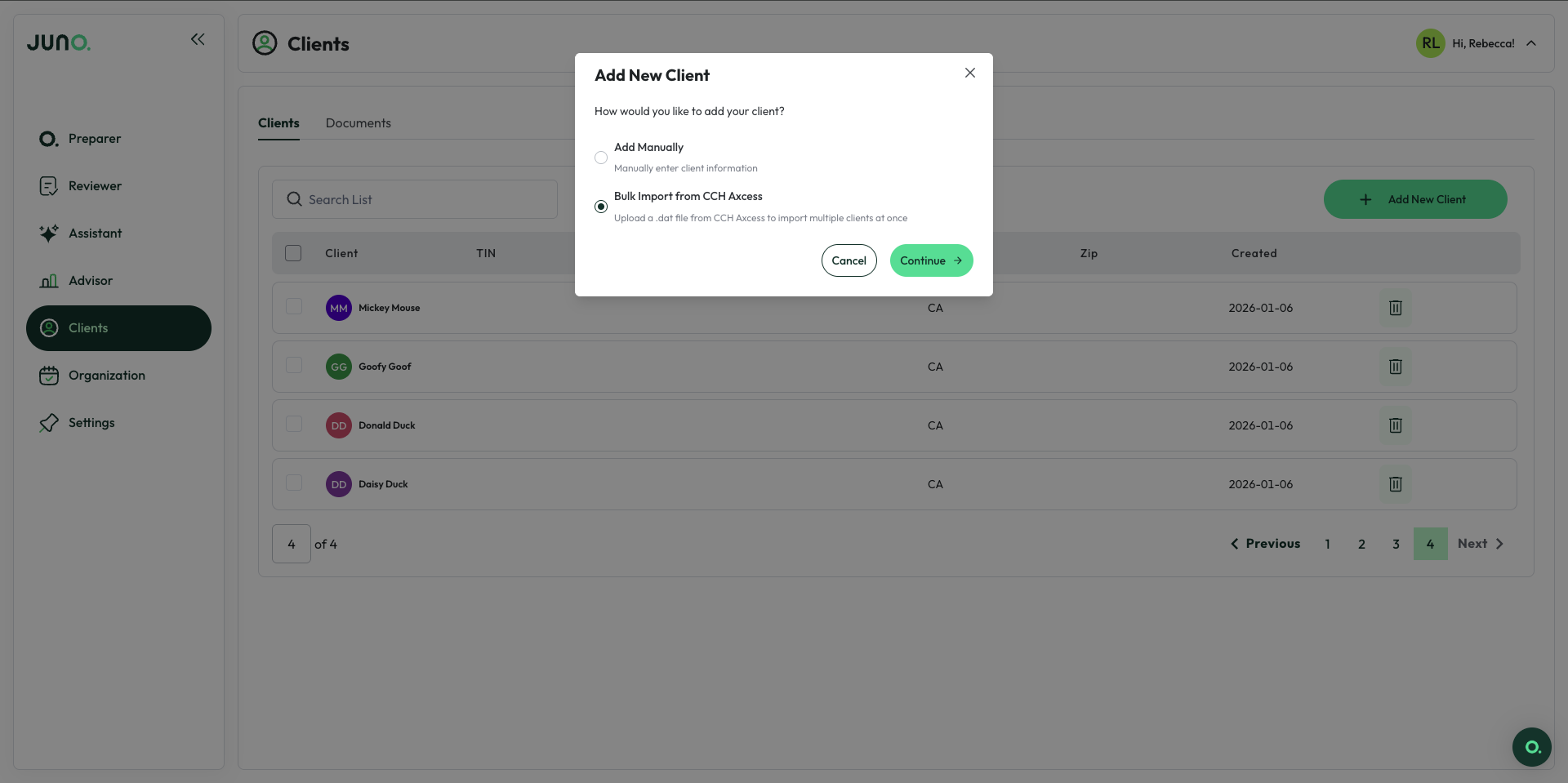
- Upload a .dat file that includes all the clients you want to import. To create this file, follow Steps 1 and 2 above - just select all of the clients you want in Return Manager instead of one.

Questions
If any other questions on connecting CCH Axcess come up, please contact Customer Support via live chat inside of the Juno Web App or email us at support@juno.tax. We're happy to help!