
Business return exports (1065, 1120-S, and 1120) to CCH Axcess use the same .dat file process as individual 1040 returns.
Step 1: Ensure All Documents Are Validated
In the Juno web app, open the business return you want to export and confirm all documents are uploaded and validated before proceeding.
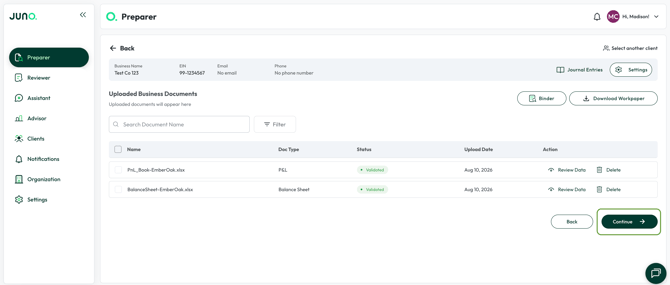
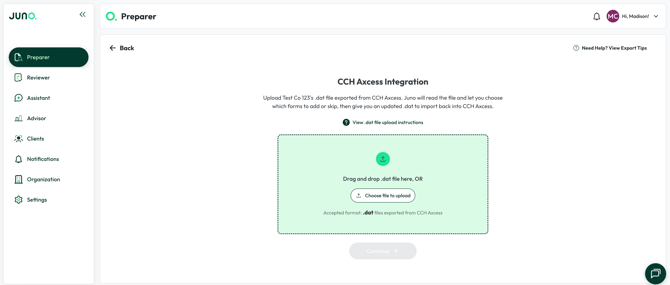
If this is your first time exporting the selected return, you will see the screen below. Here, you will upload the .dat file for the client from CCH Axcess. For steps on how to get this file, see our How to Connect CCH Axcess to Juno article.
Step 2: Review and Map Your Documents
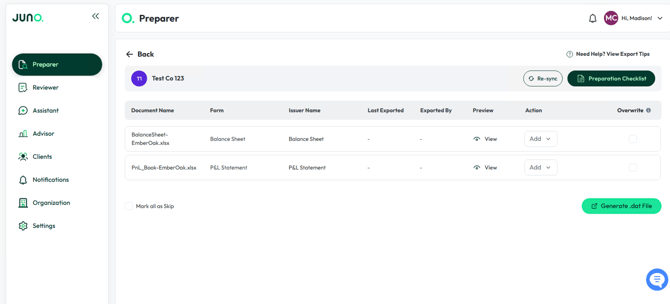
Open the business return in Preparer. For each document listed:
- Confirm the Form and Issuer Name columns are correct.
- Use the Action dropdown to choose:
- Add - create a new form in CCH Axcess
- Skip - exclude the document from this export
- To exclude every document from this export, use Mark all as Skip
Step 3: Generate and Download the .dat File
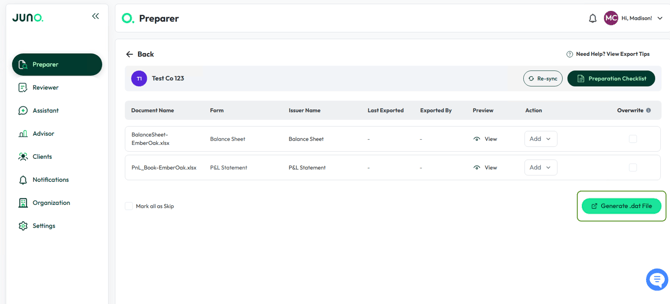
Once your documents are mapped, click Generate .dat File in the bottom right corner.
Step 4: Import the .dat File into CCH Axcess
-
After saving the .dat file, open Return Manager in CCH Axcess and select the return. Click the Utilities tab, then select Import.

- Ensure that the checkbox is selected, click Browse, and select the .dat file you generated in Juno.

- Click Validate, then Import, then Finish once the import completes.


If a client sends you a new document after you've already exported to CCH Axcess, simply repeat the steps above. With Juno, you can export data to a client’s return in CCH Axcess as many times as you’d like.
Questions
If any other questions on exporting to CCH Axcess come up, please contact Customer Support via live chat inside of the Juno Web App or email us at support@juno.tax. We're happy to help!