-1.png?width=1920&height=970&name=Juno%20Tax%20Prep%20Advisory%20Review%20(1)-1.png)
The ProConnect <> Juno integration works by pushing the data that Juno has extracted directly into ProConnect. You will see the automation run live, making clicks with your mouse and typing with your keyboard.
Important Note for Free Trial Users:
Prior to exporting to your ProConnect instance, you'll need to complete your free trial period. During your customer onboarding meeting, a member of our team will:
- Share the integration app download link with you
- Guide you step-by-step through connecting your tax software
- Ensure you’re fully set up and ready to start exporting with Juno
Running the ProConnect Export
First, open the Juno Desktop App and select the client you want to export. If you haven't downloaded the Juno Desktop App please check the email you received prior to your onboarding call.

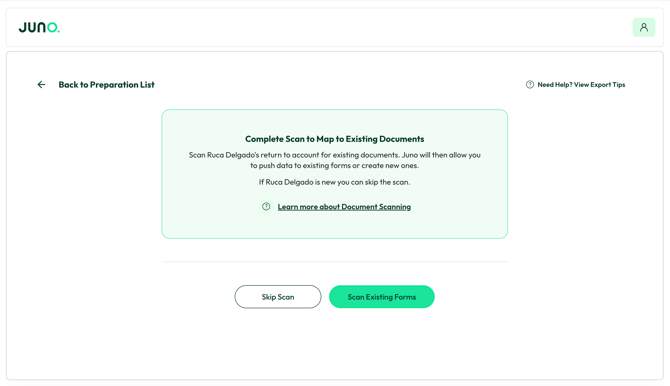
After selecting the client in Juno you'll see the below screen.
By clicking "Scan for existing documents" Juno will begin scanning your client's return in ProConnect. Please do not touch your mouse or keyboard while Juno performs this scan. The scan is incredibly important for avoiding duplicate information in Proconnect, especially in situations where continuity matters such as returning clients, pro-forma returns, and prior year carryovers. If this is a completely new client or one without carryover data, you are able to skip this step by clicking "Skip for now".
Note: The ProConnect scan reads and identifies the first 7 existing forms as options to map into. Any others will need to be added as new forms.
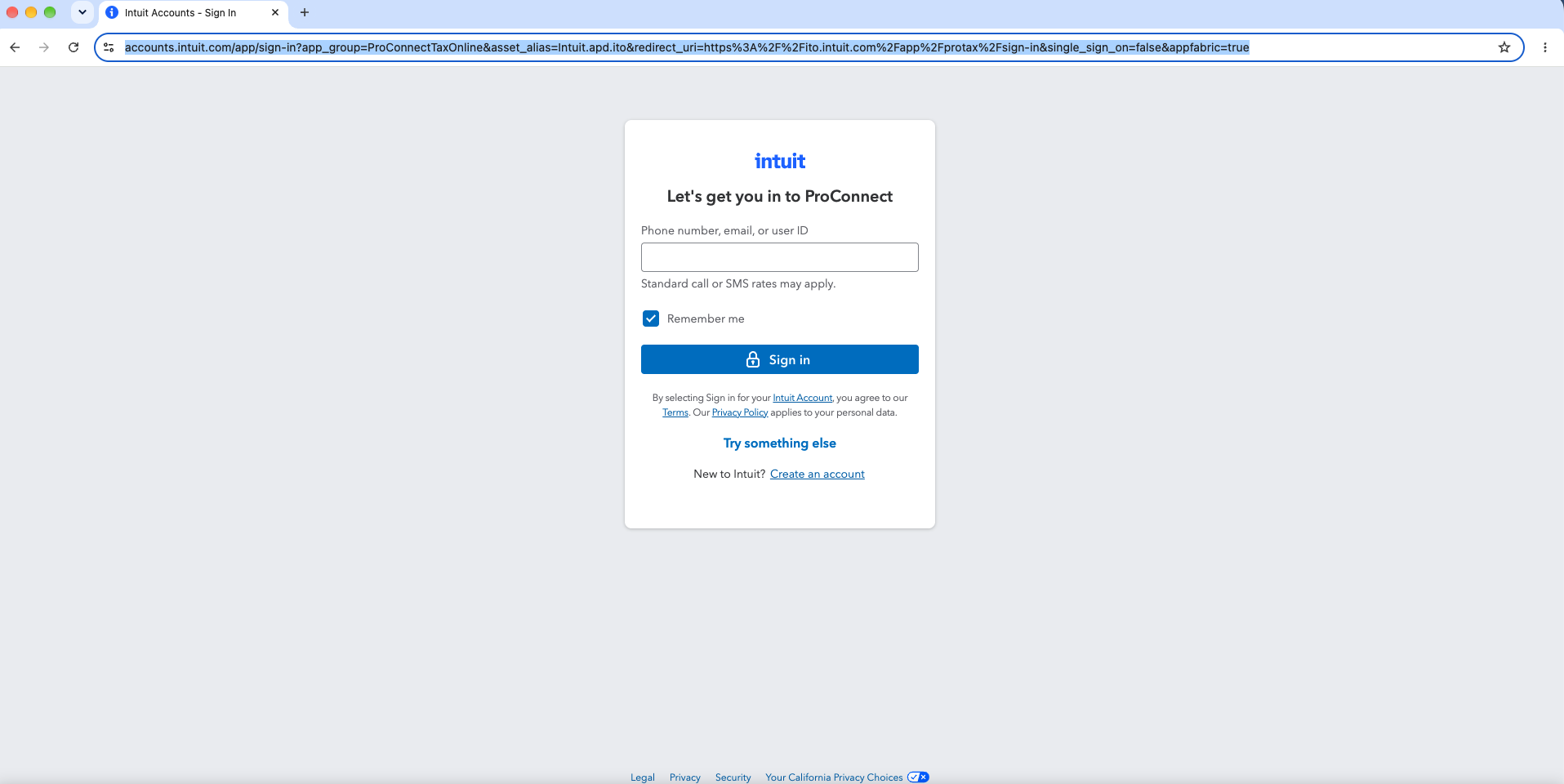
Upon clicking "Scan Existing Forms" Juno will open a browser and prompt you to sign in to ProConnect.
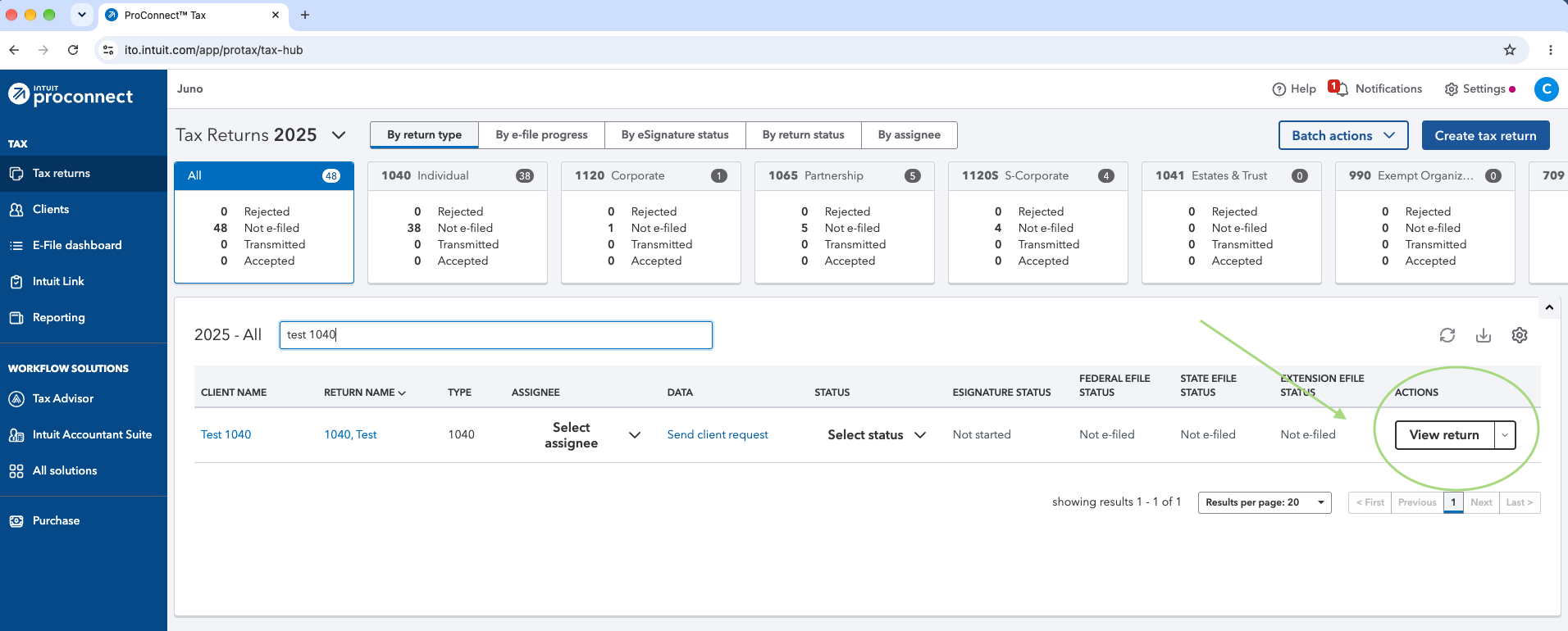
Once you are signed in, search for the return of the client you are about to export and click "View Return." After this Juno will initiate its scan to discover appropriate forms for matching.
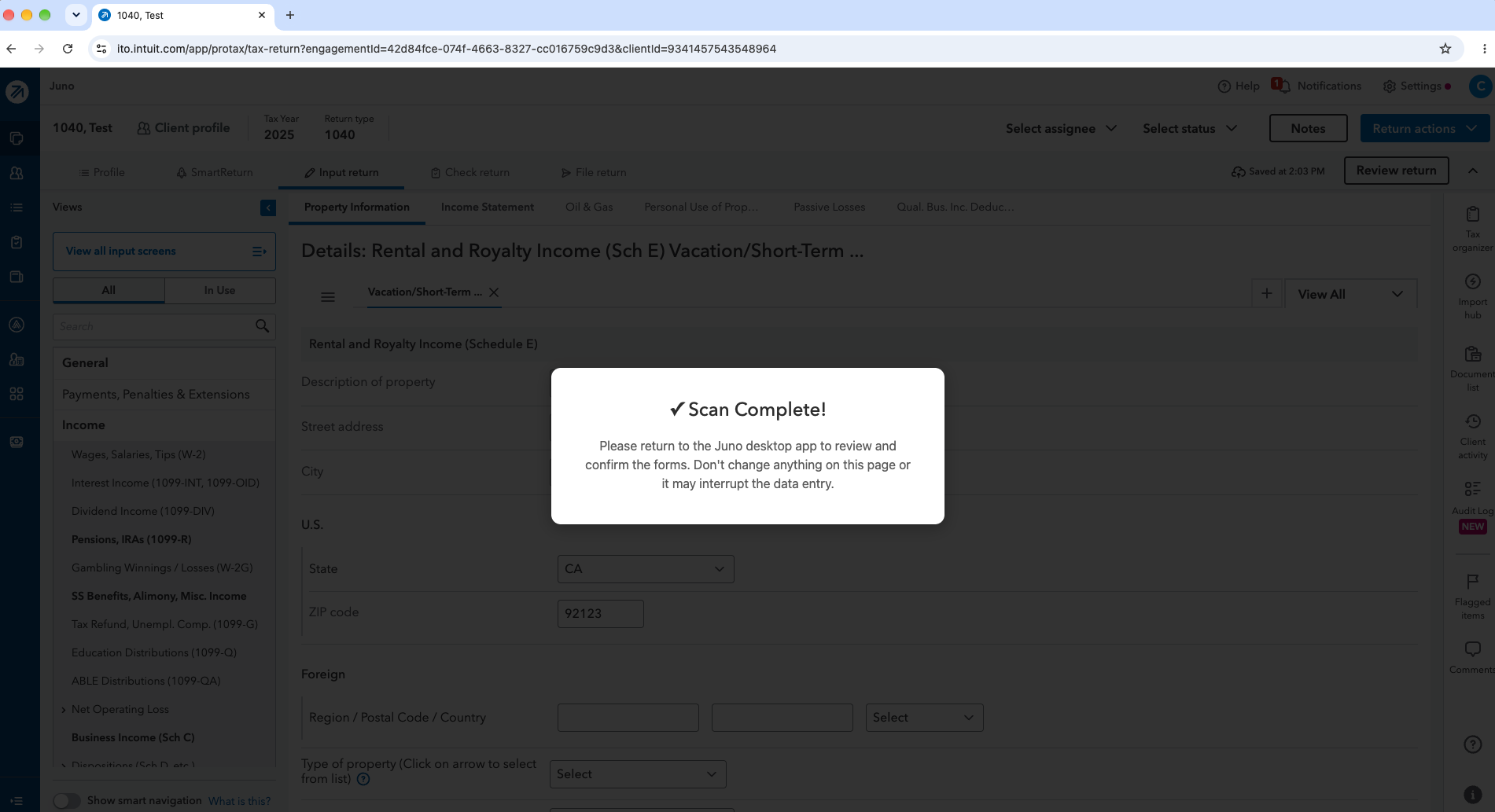
Once the scan is complete you'll see your browser update to the below screen.
Important Note: Don't close the browser after the scan is complete.
Once the scan is complete you will return to the Juno Integration App, where the screen will have updated. For each document you can now click the dropdown in the "Action" column.
Within this column you'll see a few options:
- Add - This will create a new form in ProConnect and input the validated data into it.
- Skip - This will skip the document when you export.
- Map Data - This will direct Juno to navigate to the specified document and input the validated data there.
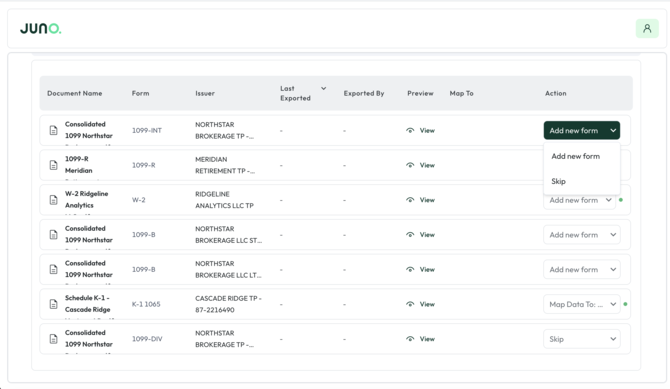
Once all the documents are mapped appropriately, click the "Enter Data" button in the lower right. This will initiate the export in the same browser that was used for the form scanning.
Once the export is complete the browser will close and the Juno application will indicate that the export is complete. Please note it is normal for ProConnect to refresh before closing. You can now view all the exported data in ProConnect.
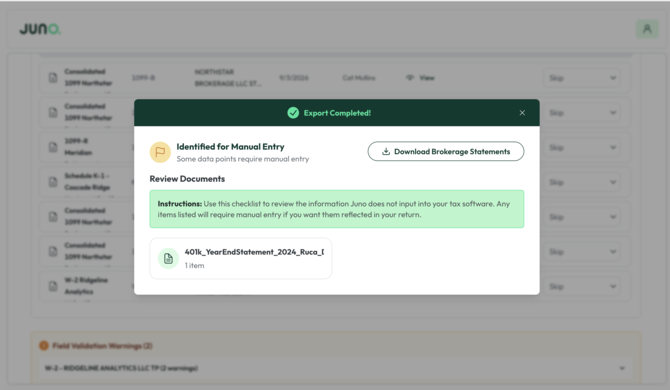
Preparation Checklist
Now that Juno has exported the majority of data to your ProConnect instance, you can use the Preparation Checklist to make sure all additional fields that Juno does not export to ProConnect get added. Click here to learn more about how to use the Preparation Checklist.
Still have a question?
Contact Customer Support via Live chat inside of the Juno Web App or email at support@juno.tax. We're happy to help!