-1.png?width=1920&height=970&name=Juno%20Tax%20Prep%20Advisory%20Review%20(1)-1.png)
The Lacerte <> Juno integration works by pushing the data that Juno has extracted directly into Lacerte. The integration will use the Lacerte Client ID to match a client's data in Juno to their return in Lacerte.
Important Note for Free Trial Users:
Prior to exporting to your Lacerte instance, you'll need to complete your free trial period. During your customer onboarding meeting, a member of our team will:
- Share the integration app download link with you
- Guide you step-by-step through connecting your tax software
- Ensure you’re fully set up and ready to start exporting with Juno
Video Instructions:
Running the Lacerte Export
When exporting data to a client in Lacerte, you must first open the Lacerte application to the All Clients view - there must not be a client's return open when the export is initiated.
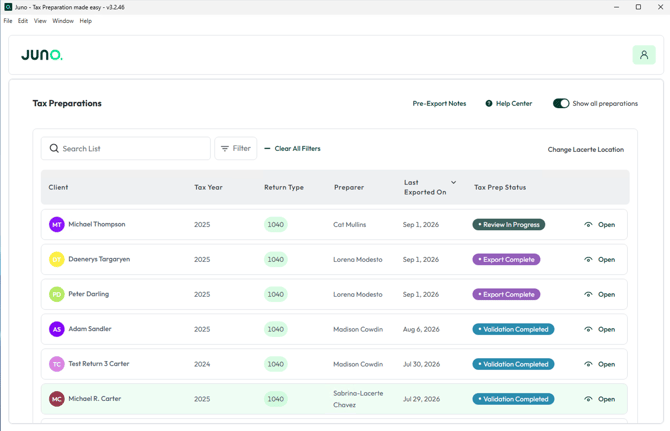
After Lacerte is open, launch the Juno Desktop application and select the client you want to export. If you haven't downloaded the Juno Desktop app please visit our How to Connect Lacerte to Juno article.
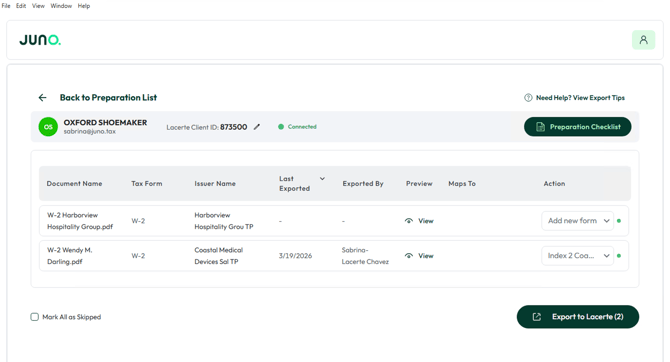
When you select the client, ensure each document is set to the correct export action in the "Action" column on the right hand side of the app. Here you can choose to have a form export as a new form, skip a form, or map a form to a specific place in Lacerte. By default, Juno will skip documents that have been previously exported.
Mapping the data using the Action column is especially important for situations where continuity matters such as returning clients, pro-forma returns, and prior year carryovers. For more details on form matching please watch this video.

Once everything is configured, click "Export to Lacerte" and let Juno enter your data for you! Juno will identify which client to push the data to by matching the Juno Client ID to the Lacerte Client ID.
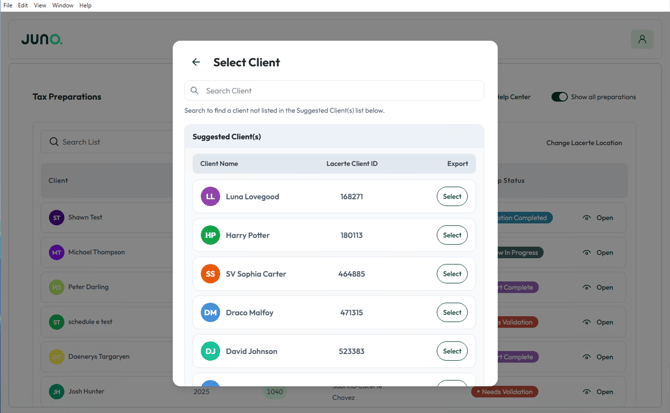
If the Juno Client ID does not match a Lacerte Client ID you will be asked to select the correct client to export to. This will then update the Juno Client ID to match the Lacerte Client ID.
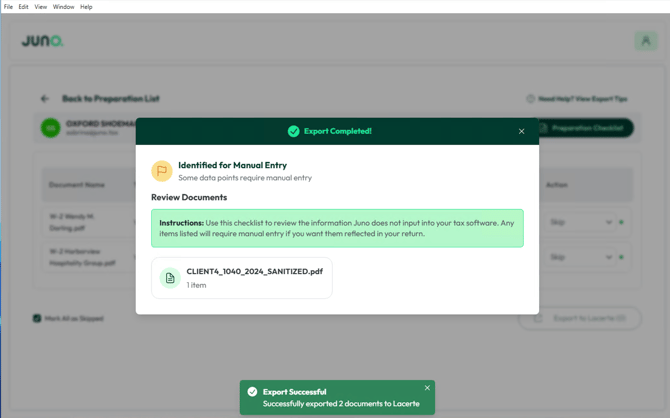
When the export is completed, the Juno application will provide the following completion alert. You can now view all the imported data in Lacerte.


Preparation Checklist
Now that Juno has exported the majority of data to your Lacerte instance, you can use the Preparation Checklist to make sure all additional fields that Juno does not export to Lacerte get added. Click here to learn more about how to use the Preparation Checklist.
Connect with us via Live Chat in the web app or email us at support@juno.tax.