-1.png?width=1920&height=970&name=Juno%20Tax%20Prep%20Advisory%20Review%20(1)-1.png)
If you haven’t connected Juno and Canopy please read our Connecting Canopy and Juno article prior to following these steps.
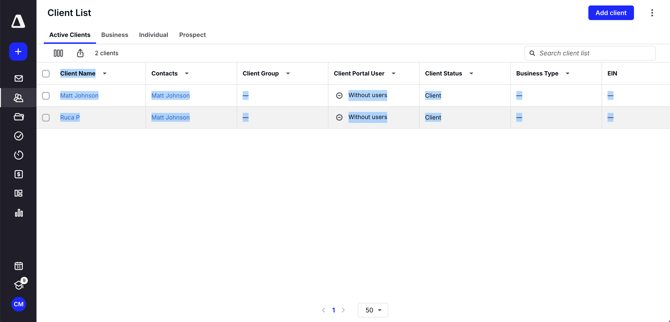
Step 1: Select the client whose documents you want to send
Navigate to your Clients tab and chose the client whose documents you want to send to Juno
Step 2: Open the Tax Prep tab
The Tax Prep tab is where you can manage which documents are sent from Canopy to Juno.

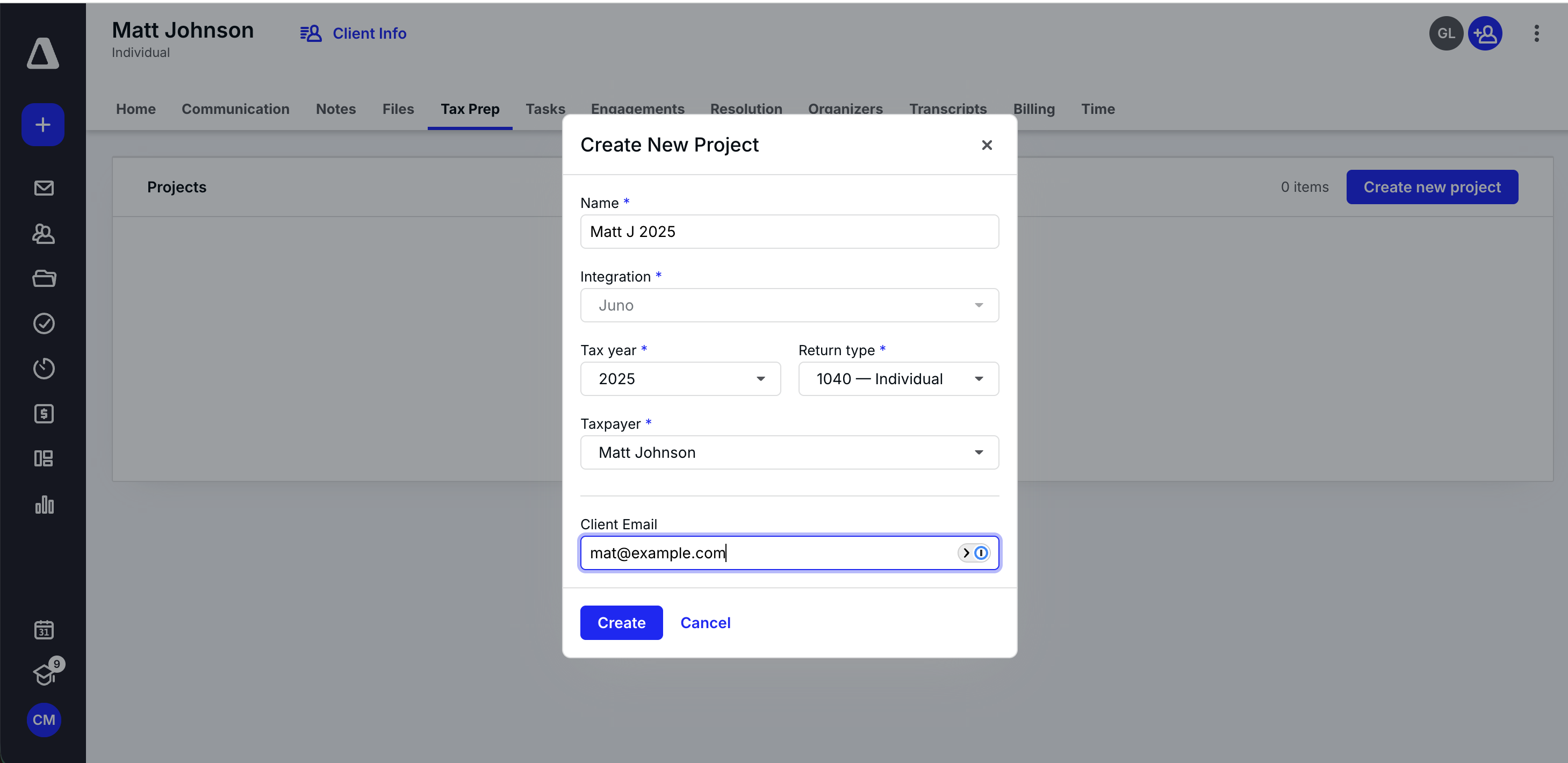
Step 3: Create a Project
A Project in Canopy is synonymous with a Preparation in Juno. The documents you add to a Project will be added to the corresponding preparation in Juno.
- Select “Create Project”
- Select the Tax Year
- Select the Return type for the client
- Enter the Project Details
Step 4: Add the client’s documents
- Add New files or upload files already stored within the Client’s Files tab.
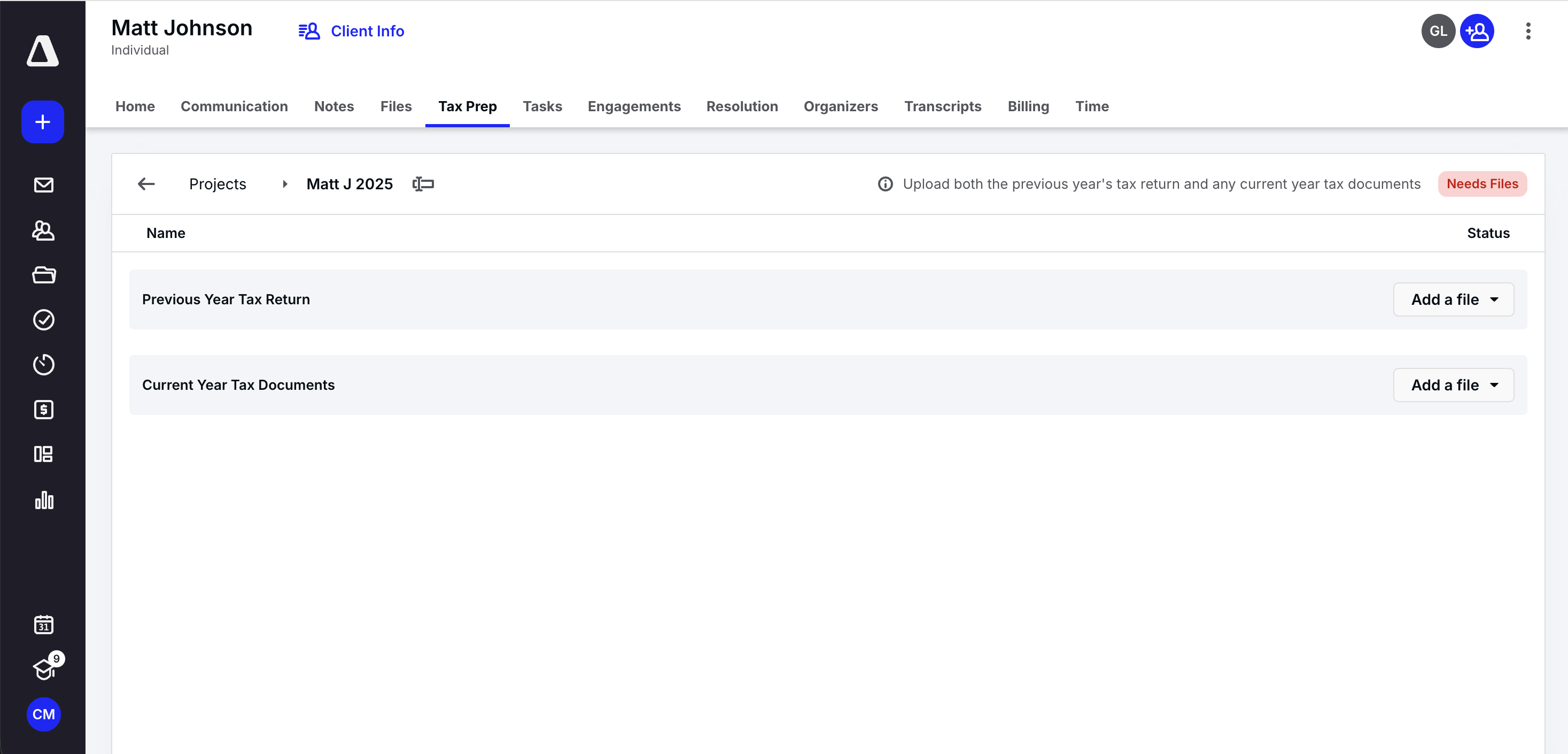
- Once files are added to a Project they are automatically synced to Juno
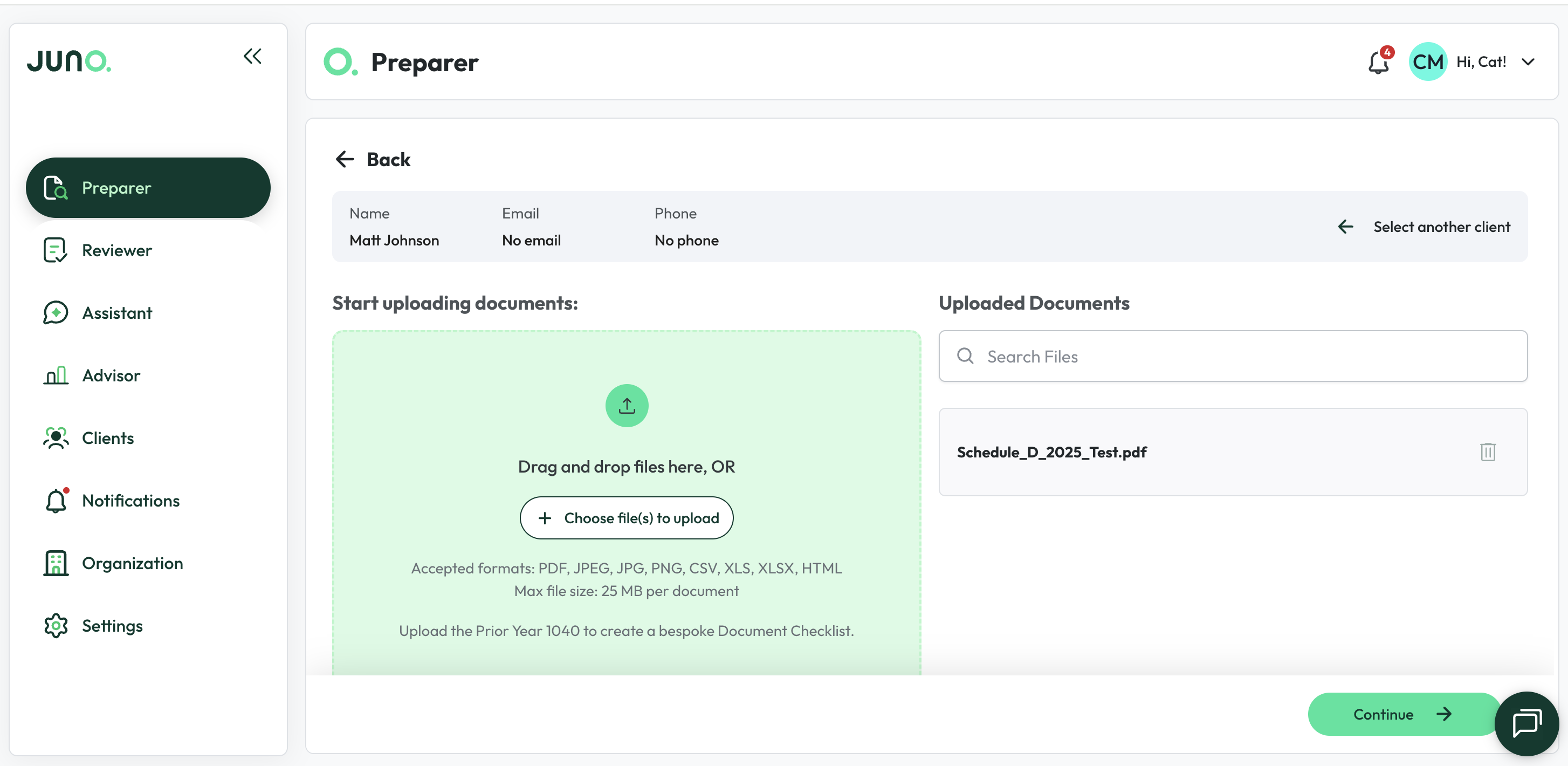

Step 5: Review in Juno
- Click the “View in Juno” button and select the client.
- Documents process in real-time allowing your team to begin your preparation workflow.
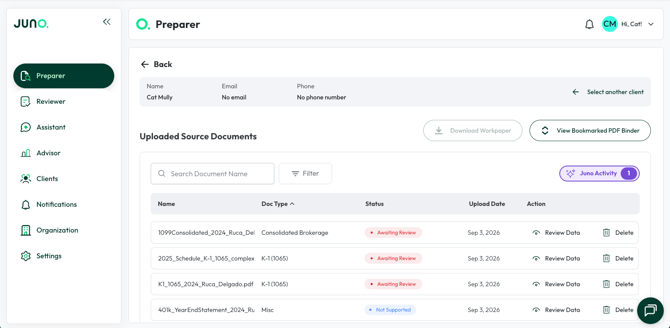
Now you’re using Juno! Check out our Step-by-Step Preparation guides to see what to do next. You can always return to Canopy to send more preparations.
If any other questions on our Canopy integration come up, please contact Customer Support via Live chat inside of the Juno Web App or email at support@juno.tax. We're happy to help!