-1.png?width=1920&height=970&name=Juno%20Tax%20Prep%20Advisory%20Review%20(1)-1.png)
Two-factor authentication (2FA) adds an extra layer of security to your Juno account by requiring a second verification step when you sign in. Juno supports three 2FA methods:
- SMS
- Authenticator app
You can set up more than one method and choose which one is your default. This article covers how to set up 2FA for the first time and how to add additional 2FA methods to an existing account.
Setting Up 2FA for the First Time
When you sign up for a Juno trial, you'll be asked to set up 2FA as part of account creation.
Step 1: Confirm your email
Before you can choose a 2FA method, you'll need to confirm your email address and enter the verification code sent to your inbox to continue.

Setting up SMS
- Enter the mobile phone number where you'd like to receive verification codes.
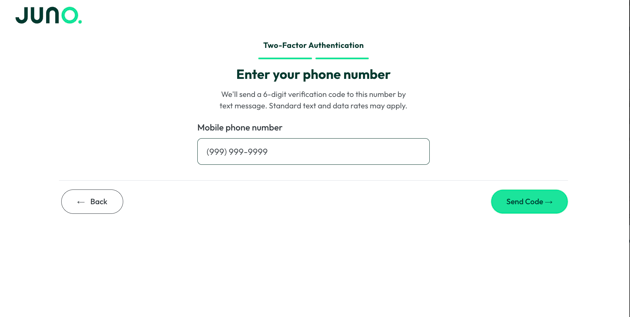
- Click Send Code. Juno will text a 6-digit verification code to that number.
- Enter the 6-digit code on the Enter verification code screen.
- Didn't get a code? Click Resend code to have it sent again.
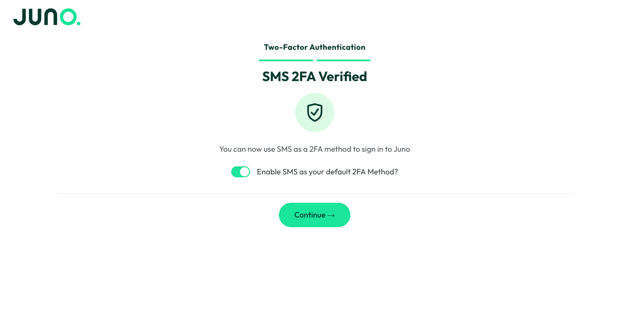
- Click Continue. Once verified, SMS is set up as your 2FA method and you'll be taken into your trial.
Setting up an authenticator app
- Open an authenticator app on your phone, such as Google Authenticator or Microsoft Authenticator.
- Scan the QR code shown on the Set up your authenticator app screen.
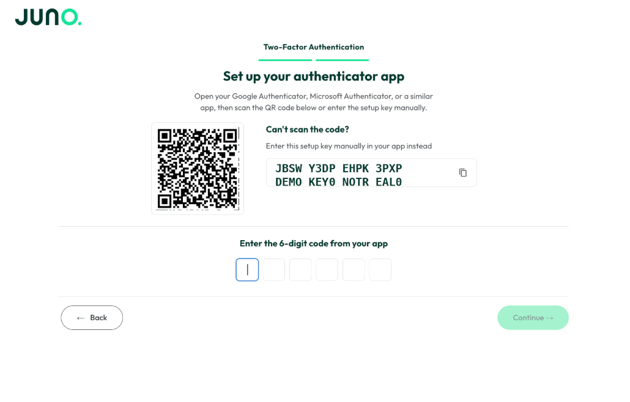
- Enter the 6-digit code your authenticator app generates, then click Continue.
- You'll be shown a set of recovery codes. Each code can be used once to sign in if you ever lose access to your authenticator app.
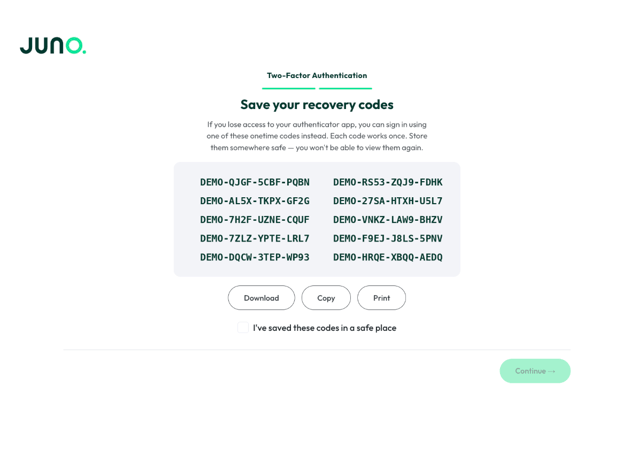
We strongly recommend downloading, copying, or printing these codes and storing them somewhere safe — you won't be able to view them again. Check the box confirming you've saved them, then click Continue to finish setup and enter your trial.
Adding a New 2FA Method (Existing Users)
Already have a Juno account and want to add another 2FA method? Here's how:
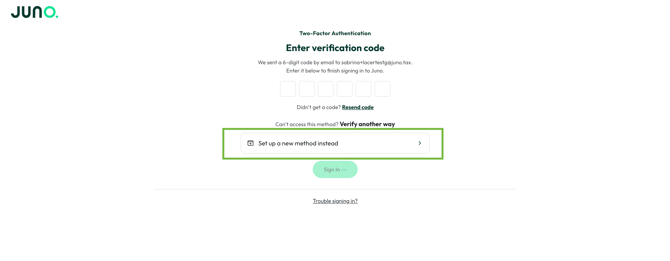
- From the Juno sign-in screen, enter your credentials as usual and reach your 2FA verification step.
- Select Set up a new method instead from the list of alternative verification options
.
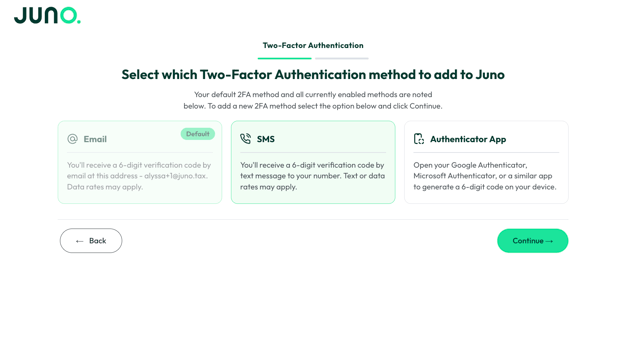
- You'll be asked to confirm your identity using your current default 2FA method before you can add a new one.
- Select the method you wish to set up yet, then click Continue
.
- Complete the setup steps for the method you chose
- Once verified, you'll see a confirmation screen (e.g. "SMS 2FA Verified" or "Authenticator App 2FA Verified"). Use the Enable as default toggle here to decide whether this new method should become your default going forward.
- Click Continue to finish and return to Juno.
Frequently Asked Questions
Can I remove a 2FA method?
Removing a 2FA method isn't currently supported from your account settings. If you need help with this reach out to support@juno.tax.
What if my organization requires 2FA?
If your firm has enabled a 2FA requirement at the organization level, you will be prompted to set up 2FA the first time you sign in, following the same steps outlined above.
What if I lose access to my authenticator app or phone?
If you set up an authenticator app, you can sign in using one of the recovery codes you saved during setup. If you're locked out entirely, contact us at support@juno.tax.
Where do I go if I'm having trouble signing in?
Reach out to us anytime at support@juno.tax.
Have a question we didn't cover here? Reach out to us at support@juno.tax.