-1.png?width=1920&height=970&name=Juno%20Tax%20Prep%20Advisory%20Review%20(1)-1.png)
Human-in-the-Loop is the review screen where users can confirm, validate, and adjust data extracted by Juno. It presents a structured, field-by-field view of detected values along with confidence indicators, highlighting areas that may require attention. This step builds human judgment into your preparation workflow, ensuring extracted information is accurate and complete before it is validated and exported to tax software.
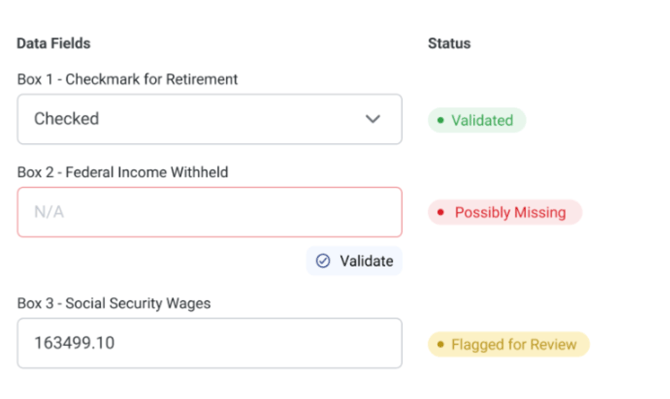
After you have started a preparation and uploaded the client's documents, click Review Data next to a document to begin validating it. It's important to know what each field status means:
- Validated - The value was extracted with near-perfect confidence and does not require review.
- Possibly Missing - Juno did not extract a value and believes one may be missing. In most cases these fields are blank on the form and simply need you to confirm that the field should remain blank. Use the Validate button below the field to do so.
- Flagged for Review - Juno suggests double-checking the extracted value. Often this is a calculated value rather than one read directly off the form (such as gain/loss on a 1099-B), and Juno is asking you to verify that it is correct.
Human-in-the-Loop for IRS Source Documents
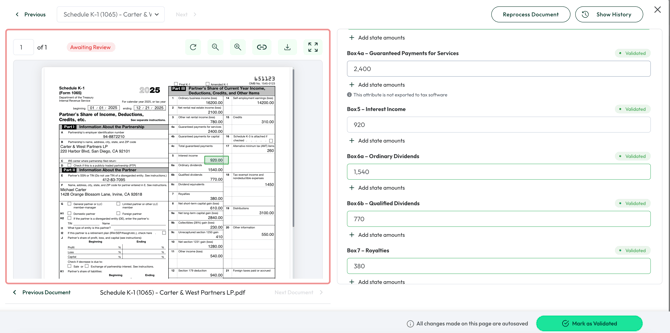
For forms such as W-2s, 1098s, 1099s, and K-1s, Juno displays the source document on the left hand side and lists each of the data field boxes on the right. (Only fields with data extracted will appear, you can view empty boxes by opening up Filter Options and selecting Show Empty Fields).
Best Practices:
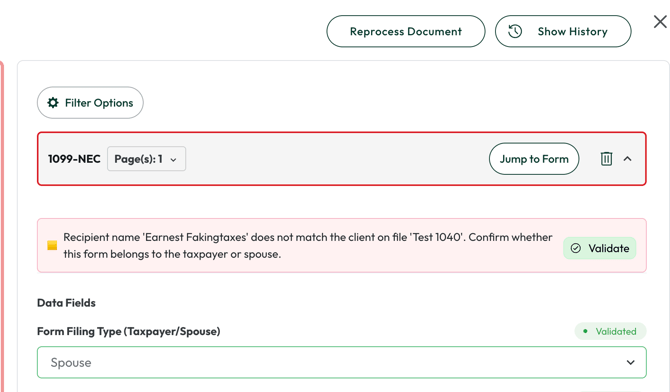
- After changing any field (such as Taxpayer/Spouse), click Validate just below it to lock in the change
- Utilize the Next and Previous Document buttons at the top and bottom of the screen for quick navigation
Finding Where a Field Came From
When reviewing a document, hover over or click any extracted field in the right-hand panel and Juno will highlight the exact location on the source document where that value was pulled from automatically jumping to the correct page. Source highlighting works for all supported source documents except schedules.
Show History
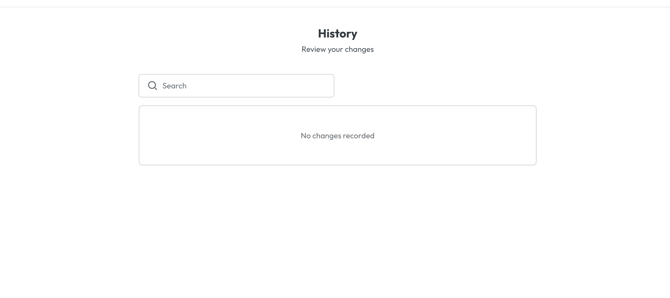
If no manual changes have been made, a No Changes Recorded message will display under Show History. Once a change is made, this screen will show who made it, when it happened, and what was changed.
Date Acquired and Date Sold Logic in Juno
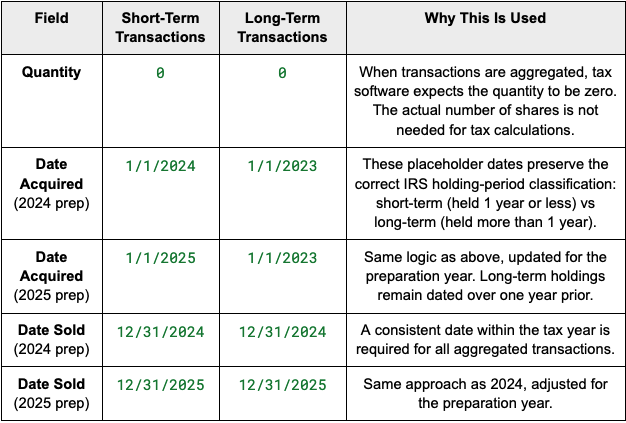
When Juno processes forms containing transactions, individual transactions are aggregated into summary rows grouped by transaction type (short-term vs. long-term) and reporting status. Because these entries are aggregated, tax software requires standardized placeholder values for certain fields, such as Date Acquired and Date Sold.
Year-Specific Behavior
Juno automatically applies the correct year-specific dates based on the return you’re preparing. The long-term acquisition date stays the same because it represents assets held for more than one year.
User Experience
These placeholder dates and quantities are expected and won’t affect the accuracy of your reported gains or losses. They simply allow your 1099-B data to be accepted and processed correctly by tax software.
Human-in-the-Loop for Schedules C, E, and F
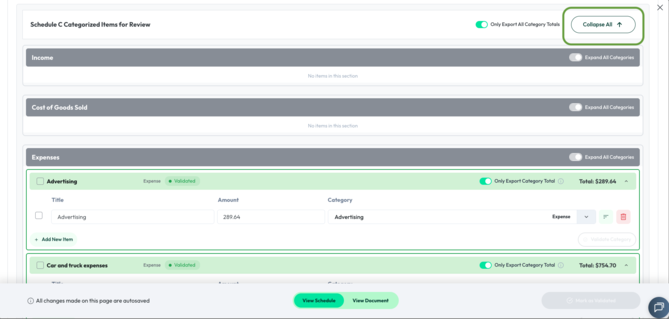
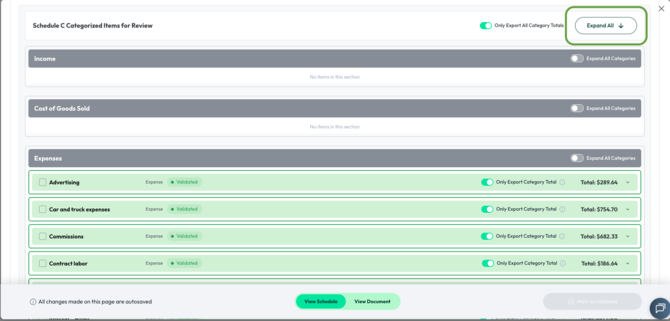
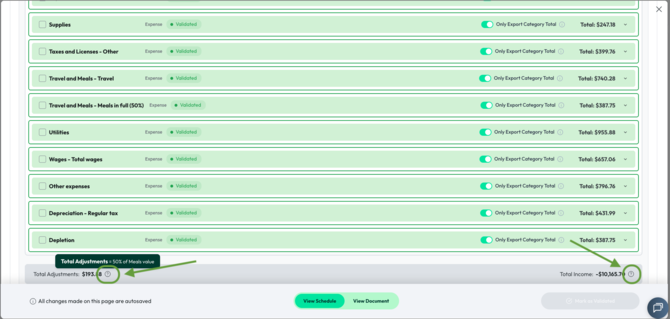
When Schedules are uploaded as source documents, Juno does not display the document itself. Instead, it pulls all of the information from the document and groups items into categories, which load fully expanded by default so you can see every item right away. Use the Collapse All button in the top right to review one category at a time - the button toggles to Expand All once collapsed.
You can review each item individually as well as the category total. While validating, you can move items between categories if they have been classified incorrectly, edit the title and amount of each item, delete items, and add new ones as needed. You can validate categories one at a time, or use Mark as Validated to validate all categories at once.
One any Schedule C, tooltips are available on Total Adjustments and Total Income at the bottom of the screen, providing more detail on what each figure includes.
Best Practices:
- To move multiple items at once, check the boxes next to the items on the left, then use the Move Selected Items To dropdown feature at the top right.
- If your documents don’t include the business name and information, you can enter that directly in Juno.
- Your scroll position is preserved when switching between View Document and View Schedule, so you won't lose your place.
Note for ProConnect users only:
-
The Only Export All Category Totals toggle controls whether category totals or individual items are exported, and account balances for federal start up costs now import import directly into Schedule C
If you ran into either issue previously, Support can confirm both are resolved.

Questions
If any other questions on Human in the Loop come up, please contact Customer Support via live chat inside of the Juno Web App or email us at support@juno.tax. We're happy to help!