-1.png?width=1920&height=970&name=Juno%20Tax%20Prep%20Advisory%20Review%20(1)-1.png)
Inviting Your Team Members
Ready to invite your team members? Navigate to "Organization" make sure you are on the User Management page and select "Invite User"
Enter the team member's name and email address, assign a role, and send the invitation. They will receive an email invite to join your organization.
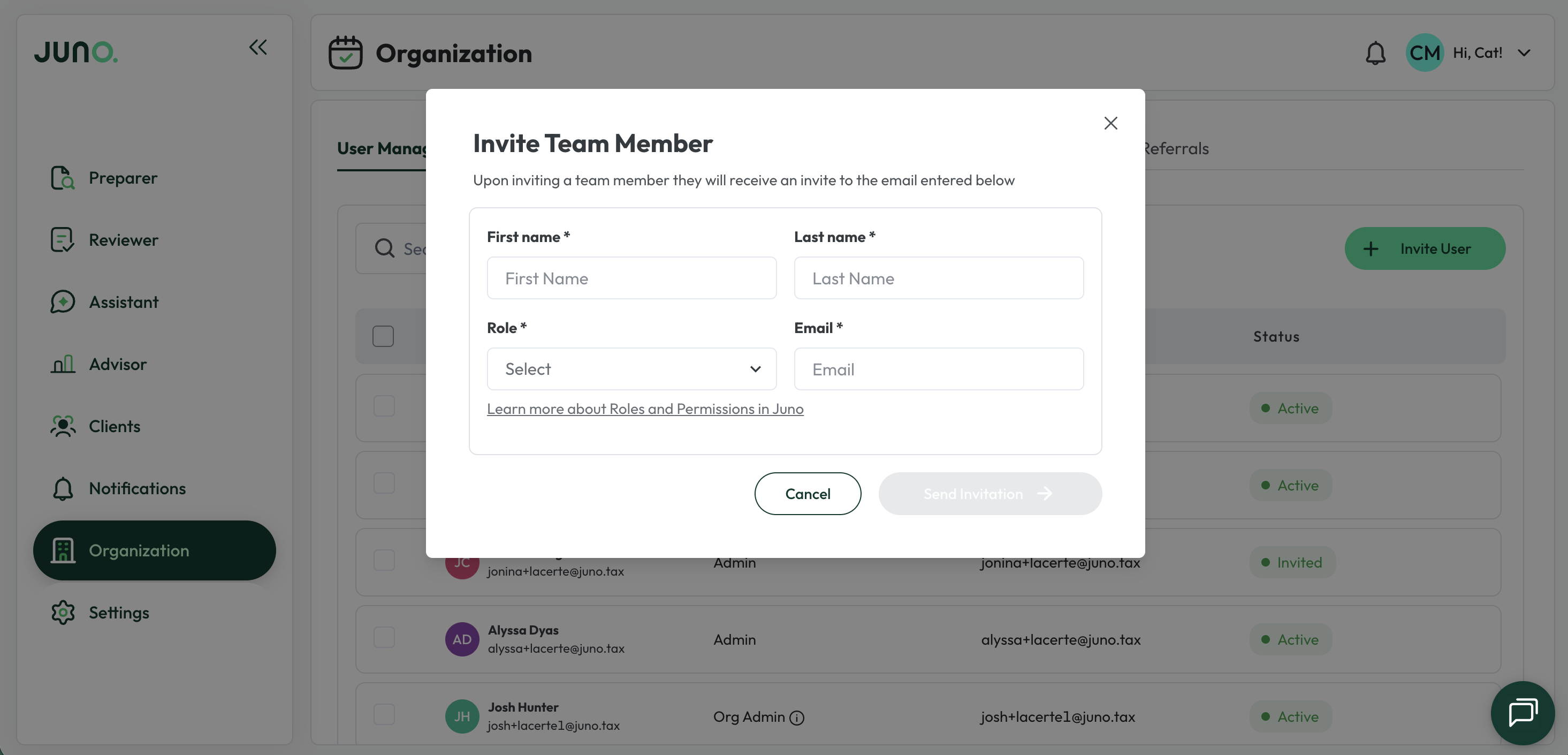
Note: Juno has three roles: Org Admin, Admin, and User. Org Admins have full control over organization settings, billing, and user management. For a full breakdown of roles, see Team Member Roles & Permissions.
When your team member opens the invitation, they can create their Juno account with Google, Microsoft, or with an email and password. If your firm uses Google or Microsoft accounts, they do not need to create a separate Juno password.
If a team member hasn't accepted their invitation, you can resend it. In User Management, select the user, check Resend Invite, and submit. They will receive an updated invitation email.
Now you are ready to get started! Return to the Preparer help center collection and select your tax software for software-specific instructions.
If the team member you are trying to invite has already signed up for a Juno trial or account using the same email, you will need to contact support@juno.tax to get them added to your organization.
If you are moving your own account to a new email address rather than adding a new person, see How to switch your Juno Account to a new Email Address.
Have a question? Please contact our Customer Support team at support@juno.tax or through live chat in the Juno Web App.