-1.png?width=1920&height=970&name=Juno%20Tax%20Prep%20Advisory%20Review%20(1)-1.png)
Important Note for Free Trial Users:
Prior to exporting to your ProSeries instance, you'll need to complete your free trial period. During your customer onboarding meeting, a member of our team will:
- Share the integration app download link with you
- Guide you step-by-step through connecting your tax software
- Ensure you're fully set up and ready to start exporting with Juno
Before you start
This article covers 1065, 1120 and 1120S returns. The screenshots included in this article show an 1120 (C Corp); the other return types follow the same path. For individual returns, see Exporting Tax Preparations to ProSeries.
-
Your ProSeries instance needs to be connected to Juno, with the Juno HomeBase custom views created on this workstation. If you haven't done that yet or your clients aren't appearing in the Juno app start with How to Connect ProSeries to Juno.
-
The business client's preparation also needs to be complete in Juno: every source document uploaded and Validated, the preparation status reading Validation Completed.
How to Export from Juno to ProSeries
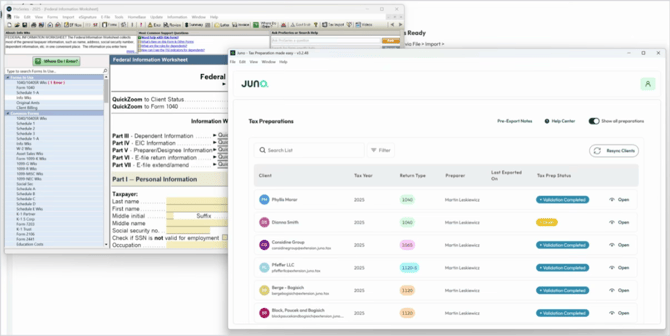
Step 1: Put the Juno app and ProSeries on the same screen
Open the Juno desktop integration app and arrange it alongside ProSeries. Both windows need to stay visible and unobstructed for the entire run. The automation controls the ProSeries window directly, so minimizing a window or letting another application take focus will interrupt the export.
Step 2: Open the Business Client's Return in ProSeries
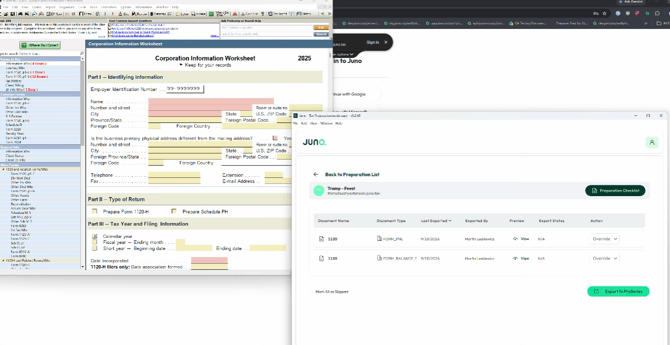
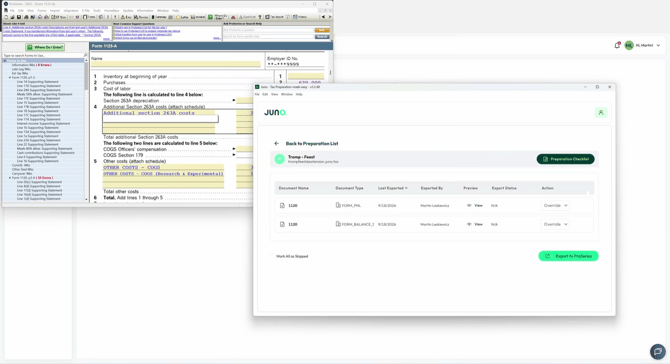
Click Open on the client in the desktop app to reach its document list. For a business return this is typically the Profit & Loss statement and the Balance Sheet, both added as forms.
If a document should be left out of this run, use the Action column or Mark All as Skipped. When everything looks right, click Export to ProSeries at the bottom right.
Step 3: Let the automation run
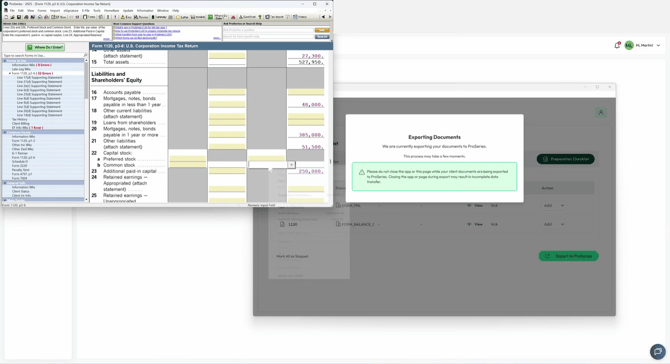
The Juno window resizes and moves to the top-left corner, then drives ProSeries form by form.
Do not use your mouse or keyboard while the export is running, and do not close the Juno app or the page. Closing mid-export can leave the transfer incomplete.
Step 4: Pausing mid-run with Caps Lock
If you need to do something in ProSeries while the automation is running, turn Caps Lock on. Juno pauses and displays:
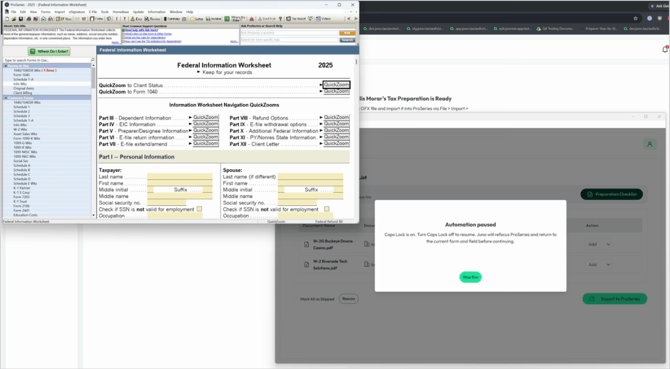
Turn Caps Lock off and the export picks up exactly where it left off. To cancel the export entirely, click Stop Run.
Step 5: Export Completes
When the run finishes, each document row shows a Last Exported date and the person who ran it, and the Action column switches from Add to Override. That's your signal the export completed.
Once a document shows Override, running the export again will overwrite what is currently in ProSeries for that form.
Still have a question?
Open a live chat or Email us at support@juno.tax. We're happy to help!