
Default Behavior
Out of the box, every member of your organization can see every client. If you haven't created any client lists, nothing changes — this only affects visibility once a list exists.
What a Client List Does
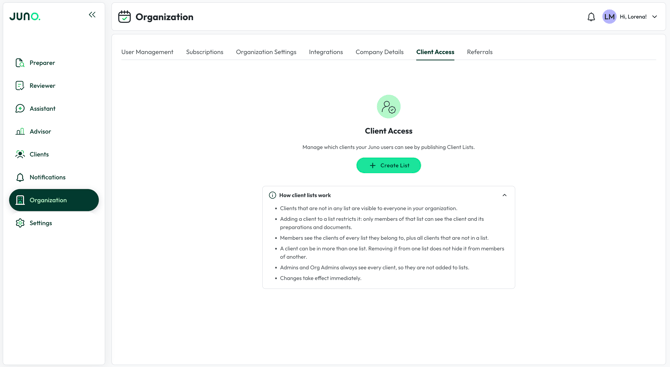
A client list restricts which clients a member with user permission can see. Clients that aren't in any list are visible to everyone in your organization. Adding a client to a list restricts it, so only members of that list can see the client and its preparations and documents — and a client can belong to more than one list, so removing it from one doesn't hide it from members of another. Members see the clients of every list they belong to, plus all clients that aren't in a list, and changes take effect immediately.
Admins and org admins always see every client, regardless of any client lists — that's why they aren't added to lists. See our Team Member Roles & Permissions article for more on what each role can see and do.
Setting Up a Client List
Only admins and org admins can create and manage client lists.
- Go to Organization → Client Access.
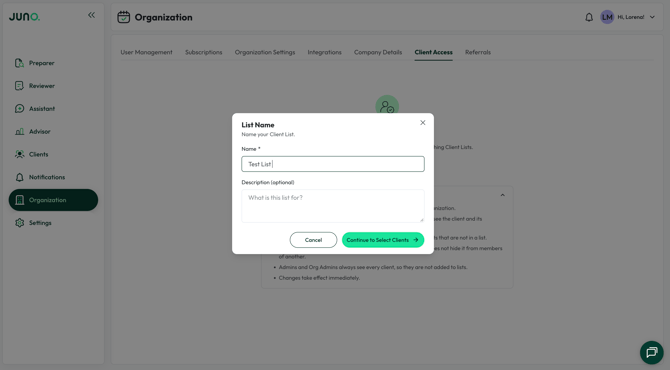
- Name the list, and add an optional description.
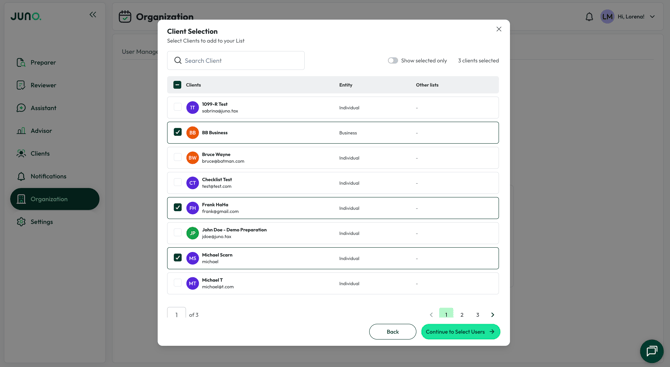
- Select the clients you want to restrict.
- Select the users who should be able to see those clients. This screen only lists members with user permissions.
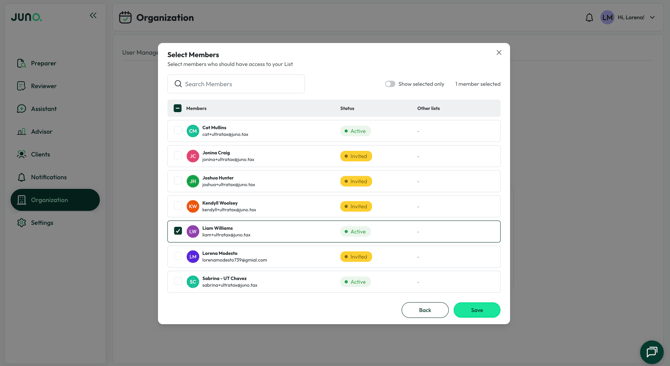
- Click Save.
What Happens Next:
Once saved, your new list appears on the Client Access page, showing how many clients and users are assigned to it. The clients on that list are now visible only to the users you selected — every other member with user permission won’t see them at all. They simply won’t appear anywhere in those clients’ Preparer, Reviewer, or Advisor views.
Questions?
If any other questions about Client Access come up, please contact Customer Support via Live chat inside the Juno Web App or email at support@juno.tax. We're happy to help!