-1.png?width=1920&height=970&name=Juno%20Tax%20Prep%20Advisory%20Review%20(1)-1.png)
Human-in-the-Loop is the review screen where users can confirm, validate, and adjust data extracted by Juno. It presents a structured, field-by-field view of detected values along with confidence indicators, highlighting areas that may require attention. This step allows for human judgment in your preparation workflow, ensuring extracted information is accurate and complete before it is validated and exported to tax software.
After you have started a preparation and uploaded the client's documents, click Review Data next to a document to begin validating it. It's important to know what each field status means:
- Possibly Missing - Juno did not extract a value and believes one may be missing. In most cases these fields are blank on the form and simply need you to confirm that the field should remain blank. Use the Validate button below the field to do so.
- Flagged for Review - Juno suggests double-checking the extracted value. Often the value is created (such as gain/loss on a 1099-B) and Juno is asking you to verify that it is correct.
- Validated - The value was extracted with near perfect confidence and doesn’t require review.
Human-in-the-loop for IRS Source Documents
For forms such as W-2s, 1098s, 1099s, and K-1s, Juno displays the source document on the left hand side and lists each of the data field boxes on the right. (Only fields with data extracted will appear, you can view empty boxes by opening up Filter Options and selecting Show Empty Fields).
Best Practices:
- Ensure to validate using the "Validate" button after making changes (to items like Taxpayer/Spouse)
- When you change a box, click “Validate” just below it to lock in the change
- Utilize the Next and Previous Document buttons at the top and bottom of the screen for quick and easy navigation
Show History
If no manual changes have been made, a "No Changes Recorded" message will display under Show History. Once a change is made, this screen will show who made it, when it happened, and what was changed.

Explaining Date Acquired and Date Sold Logic in Juno
When Juno processes forms containing transactions, those individual transactions are aggregated into summary rows. These rows are grouped by transaction type (short-term vs. long-term) and reporting status. Because these entries are aggregated, tax software requires standardized placeholder values for certain fields.
Year-Specific Behavior
Juno automatically applies the correct year-specific dates based on the return you’re preparing. The long-term acquisition date stays the same because it represents assets held for more than one year.
User Experience
These dates and quantities are expected and won’t affect the accuracy of your reported gains or losses. They’re simply placeholders that allow your 1099-B data to be accepted and processed correctly by tax software.

Human-in-the-loop for Schedules C, E, and F
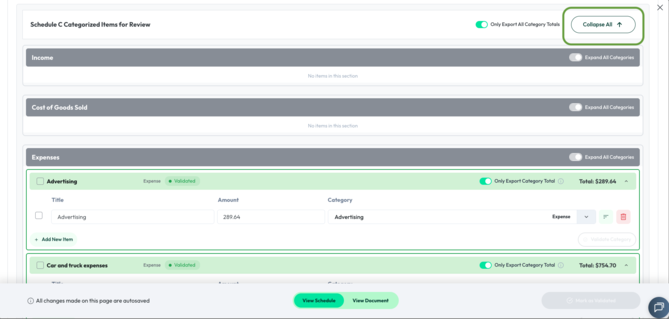
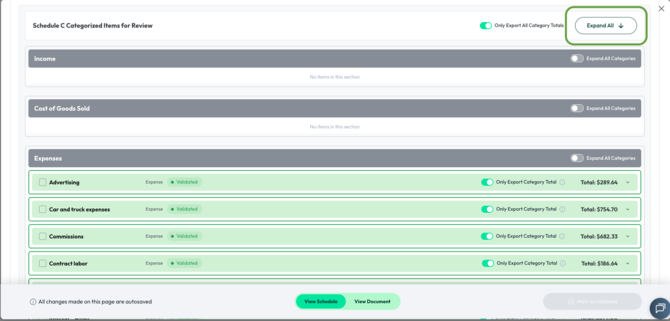
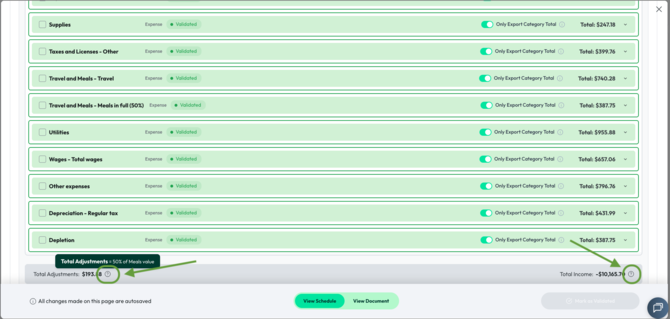
When Schedules are uploaded as source documents, Juno does not display the document itself. Instead, it pulls all of the information from the document and groups items into categories, which load fully expanded by default so you can see every item right away. Use the "Collapse All" button in the top right to collapse categories if you'd rather review one at a time - the button toggles to "Expand All" once collapsed. You can review each item individually as well as the category total. When validating the data, you can move items between categories if they have been classified incorrectly, and you can edit the title and amount of each item, delete items, and add new ones as needed. When reviewing the data, you can validate categories one at a time or use the “Mark as Validated” feature to validate all categories at once. On any Schedule C, tooltips are now available on "Total Adjustments" and "Total Income" at the bottom of the screen, providing more detail on what each figure includes.
Best Practices:
- If you want to move multiple items from a category at once, you can select a group of items by checking the box next to the specific items on the left and use the “Move Selected Items To” drop down feature on the top right.
- If your documents don’t have the business name and information listed, you can enter that directly in Juno
- Your scroll position is preserved when switching between "View Document" and "View Schedule," so you won't lose your place
Note: For ProConnect users only -
-
The "Only Export All Category Totals" toggle now correctly controls whether category totals or individual items are exported
-
Account balances for Federal Start Up costs now import correctly into Schedule C
If you ran into either issue previously, Support can confirm both are resolved.

Questions
If any other questions on Human in the Loop come up, please contact Customer Support via live chat inside of the Juno Web App or email us at support@juno.tax. We're happy to help!